INFO 1300: Planning Static Interactivity
Class 19: Planning Static Interactivity
- Review: Static Interactivity
- Planning Static Client-Side Interactivity
- Phase I: Plan HTML + CSS for Interactivity
- Phase II: Plan Events and Add/Remove CSS Classes
- Gotchas & Tips: Implementing Interactivity
Copyright 2026, Kyle J. Harms
Review: Static Client-Side Interactivity
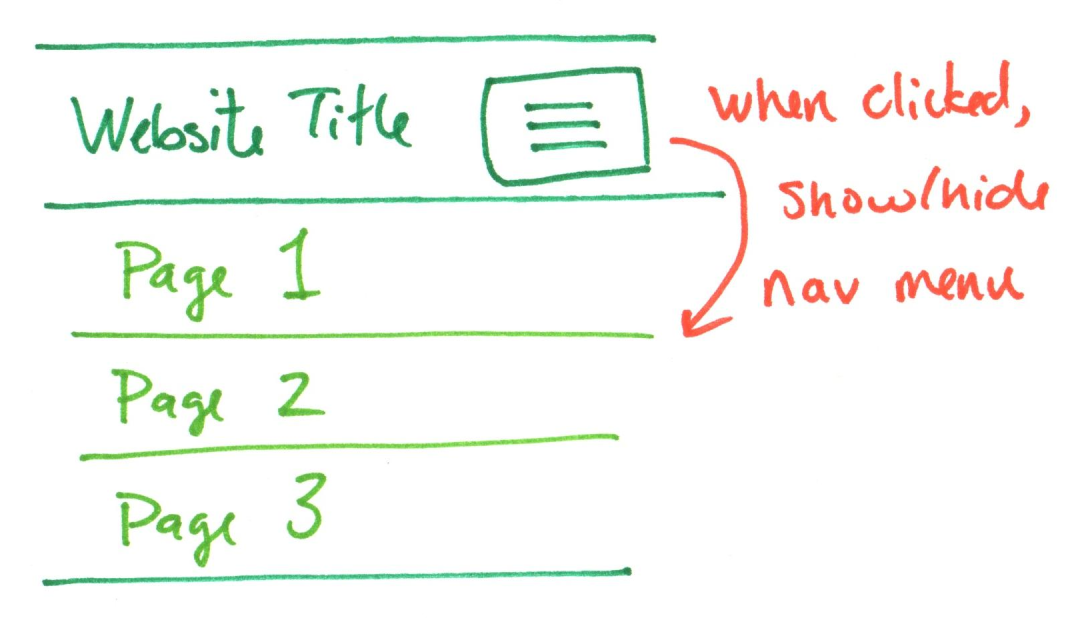
Changing the style of an existing website's content using client-side scripting (JavaScript) in response to the user's behavior. (No new content, HTML, CSS is loaded.)
Example:
When the user taps the "hamburger button", show/hide the existing navigation menu.
Review: Why Interactivity?
Your goal for the website: The site's audience is able to accomplish their goals.
Interactivity goal: Enhance the functionality of the website to assist users in pursuit of their goals.
Interactivity should enhance your audience's experience and help them accomplish their goals.
Review: Interactivity Design Principles
- Functional – assists with the user's goals.
- Affordances – provide strong clues for the operation of things.
- Visibility – make the relevant parts visible.
- Feedback – give each action an immediate and obvious effect.
- Familiarity – conform to established design patterns.
Example: Static Client-Side Interactivity
Cookie Banner: Close the privacy/cookie banner without re-loading the page.
Note: Static websites do not typically use cookies.
(No credit provided for cookie banner interactivity in the project.)

HTTP Cookies
A cookie is a small piece of data used by a website to remember information about a user on dynamic websites (i.e. INFO 2310).
Examples: Remember login status, preferences, shopping cart, etc.
Some cookies are used to track user behavior.
European Union Privacy and Electronic Communications Directive 2002/58/EC: Obtain consent before storing cookies for a website.
Cookie Banner Requirements
- Informative Notice: Clearly state that cookies are being used and their purpose.
- Consent Options: Allow users to accept or reject non-essential cookies.
- Privacy Policy Link: Provide a link to the website's privacy policy for more detailed information.
- User Control: Enable users to manage their cookie preferences easily.
Activity: Design a Cookie Banner
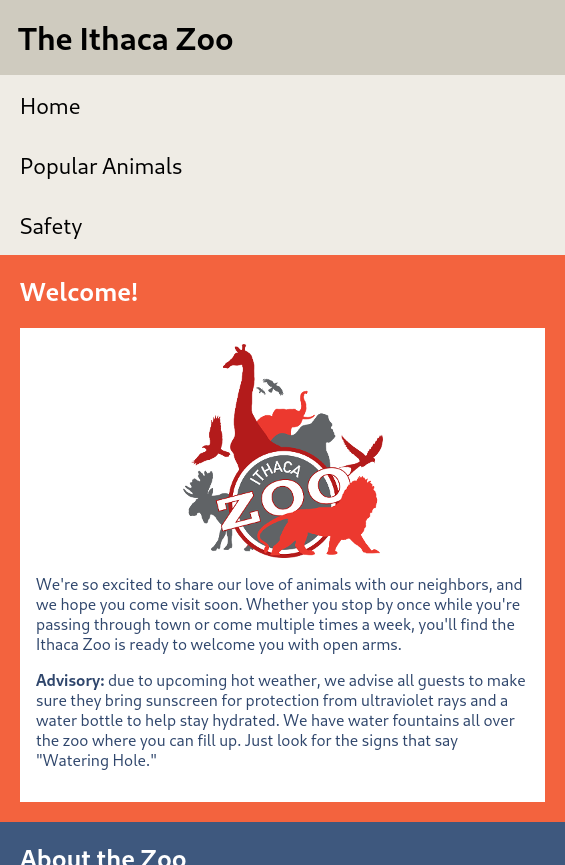
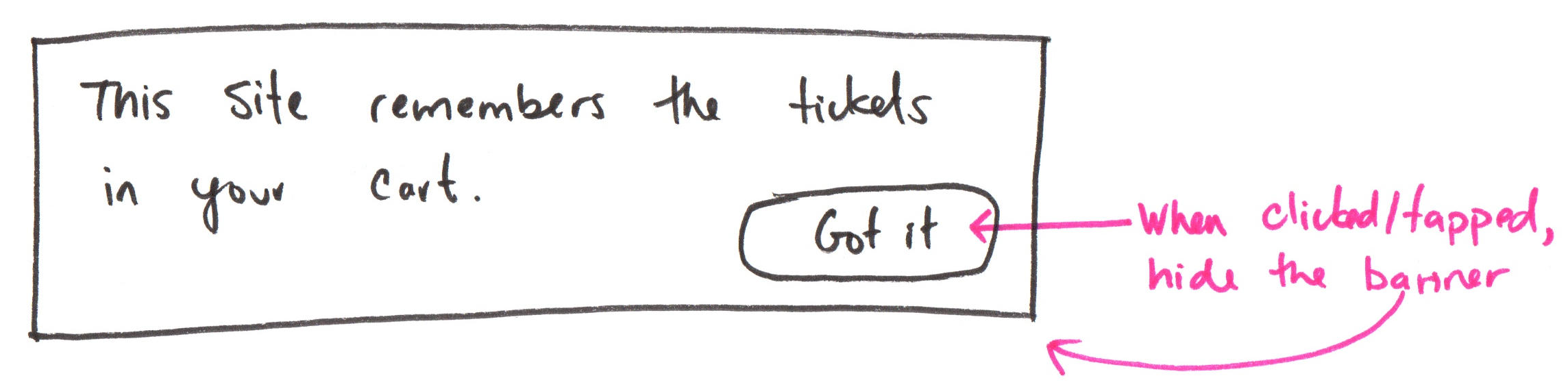
Working with a peer, design a cookie banner that notifies users about this website's use of cookies to remember their tickets in their shopping cart.
Sketch the interactivity's design (with annotations describing the interactivity) on your handout.
Note: The zoo website does not use cookies. (Pretend it does.)
Example: Interactivity Design Sketch
Static Client-Side Interactivity
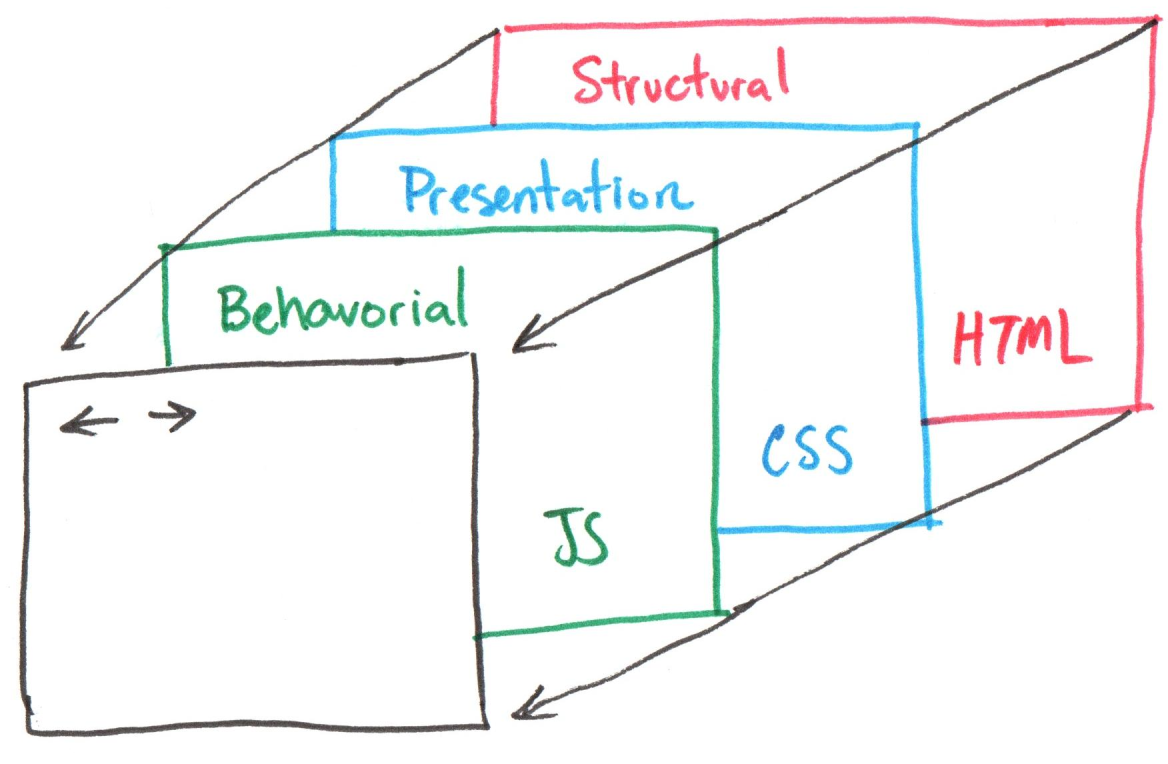
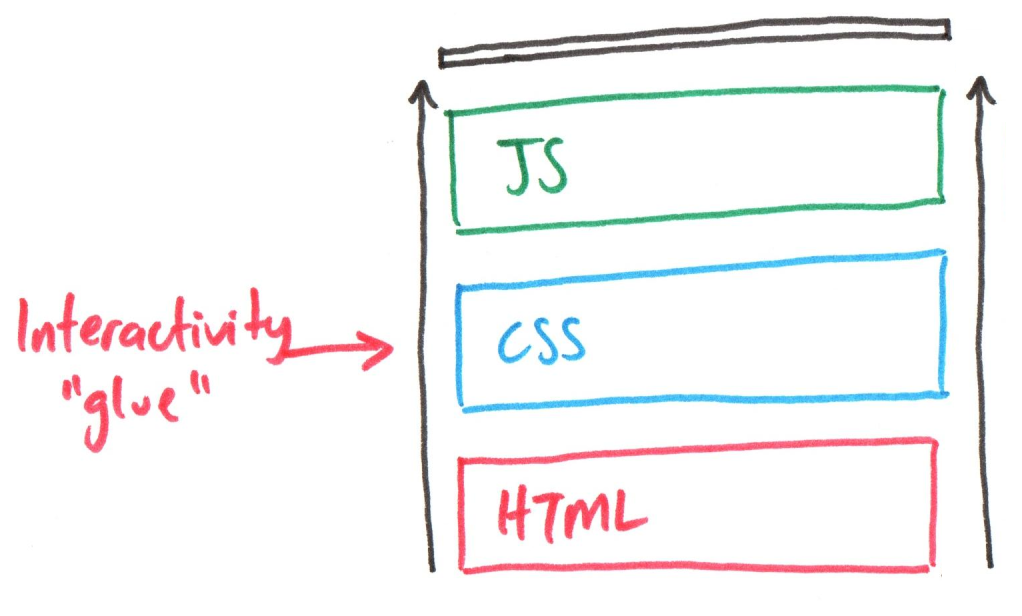
HTML, CSS, and JavaScript
The 3 Browser Layers
Planning Static Interactivity
Phase I
- Plan, then code all interactivity and non-interactivity HTML + CSS.
- Plan, then code initial/default page state using only CSS classes.
Phase II
- Plan, then code listening for user events in JavaScript.
- Plan, then code responding to events by adding/removing CSS classes.
Today – Planning Static Interactivity
Next Week – Implementing Static Interactivity
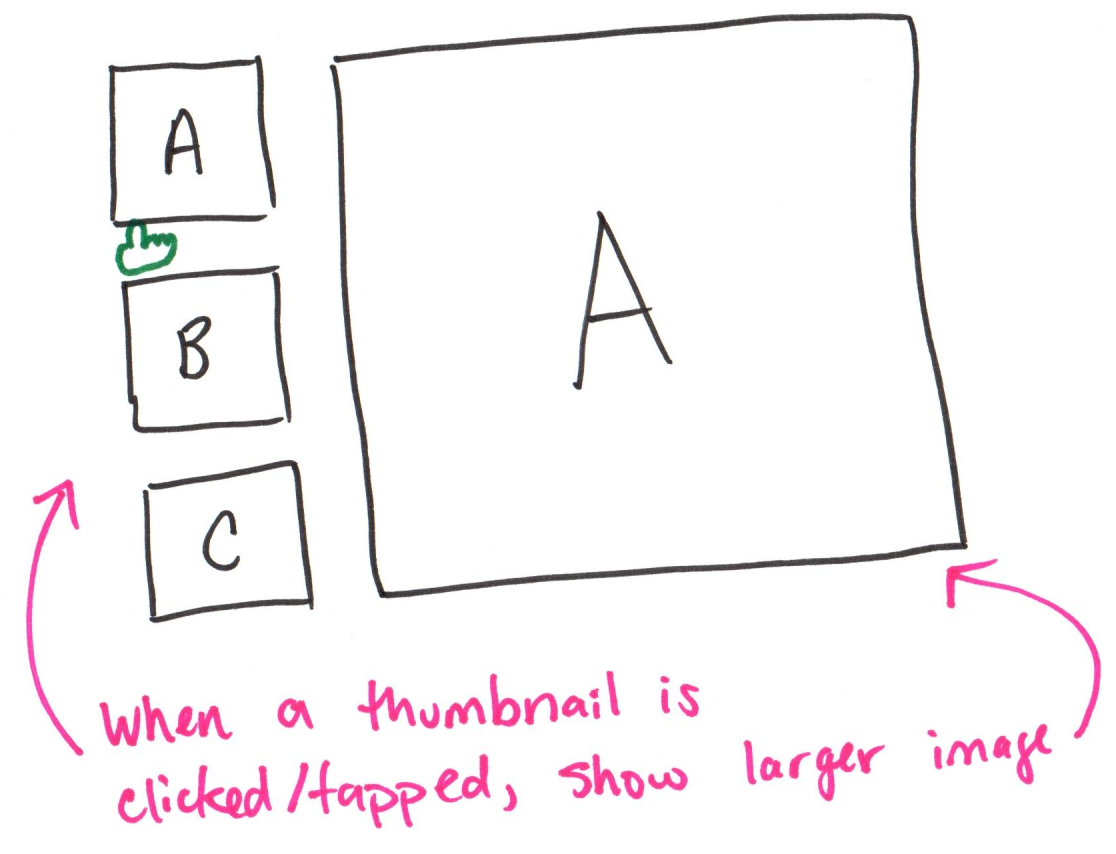
Example: Gallery Design Sketch
Planning Static Interactivity
Phase I
- Plan, then code all interactivity and non-interactivity HTML + CSS.
- Plan, then code initial/default page state using only CSS classes.
Phase II
- Plan, then code listening for user events in JavaScript.
- Plan, then code responding to events by adding/removing CSS classes.
1. Plan all interactivity and non-interactivity HTML + CSS
Plan, then code everything you need in your HTML:
- Plan, then code all non-interactivity elements.
- Plan, then code all interactivity elements.
- Use
<button>for user actions – accessibility (Do not use<a>;<a>is for links, not actions.)
Plan, then code CSS classes to change HTML elements in response to user actions:
- Most of the time, you'll want to show/hide an element.
Demo: Plan HTML Elements for Interactivity
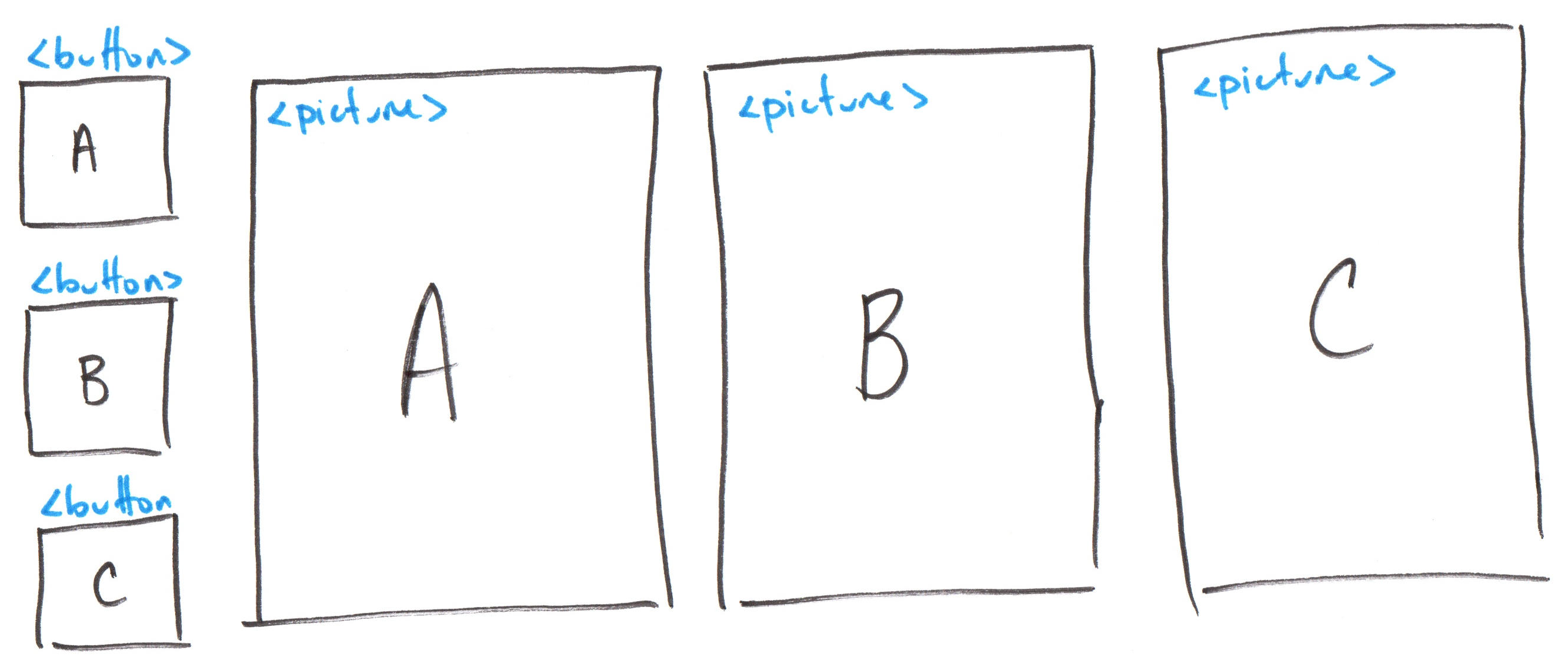
- Plan all non-interactive elements.
- Plan all interactive elements.
Example: Planning Interactivity Elements
Activity: Plan HTML Elements for Interactivity
Working with a peer, plan the HTML elements for your cookie banner on your handout.
- Plan all non-interactivity elements.
- Plan all interactivity elements.
- Use
<button>for user actions.
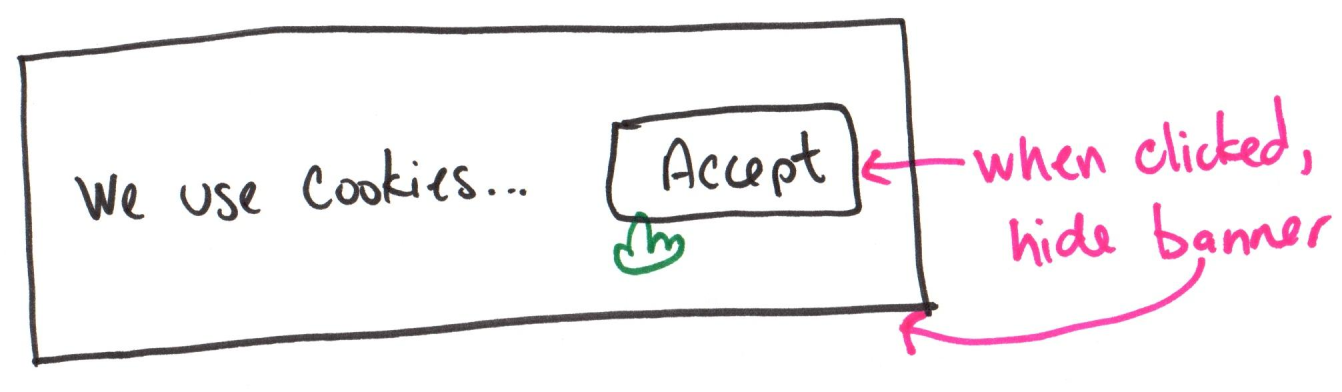
Example: Interactivity Element Planning Sketch
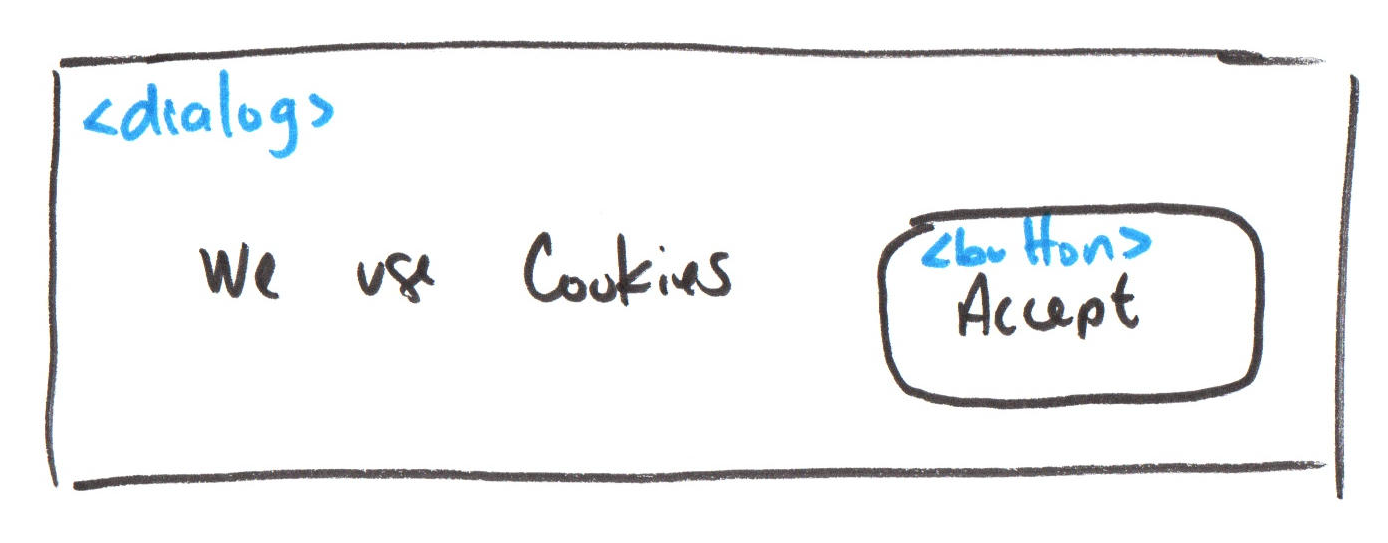
Note: Use <dialog open> (instead of <div>) for accessible alerts.
Example: Plan CSS Classes for Interactivity
Use CSS classes to add and remove styling for the interactivity.
Example: show / hide an element.
/* CSS rule(s) to hide an element */
.hidden {
   display: none;
}
show:
<div>Example</div>
hide:
<div class="hidden">Example</div>
2. Plan initial/default page state using only CSS classes.
Set the class= attribute on HTML elements to their default state.
- If an element should be styled (e.g. hidden) when the page loads,
add a class! - If an element should not be styled (e.g. visible) when the page loads, don't set a class!
show:
<div>Example</div>
hide:
<div class="hidden">Example</div>
Example: Initial CSS "State" Plan
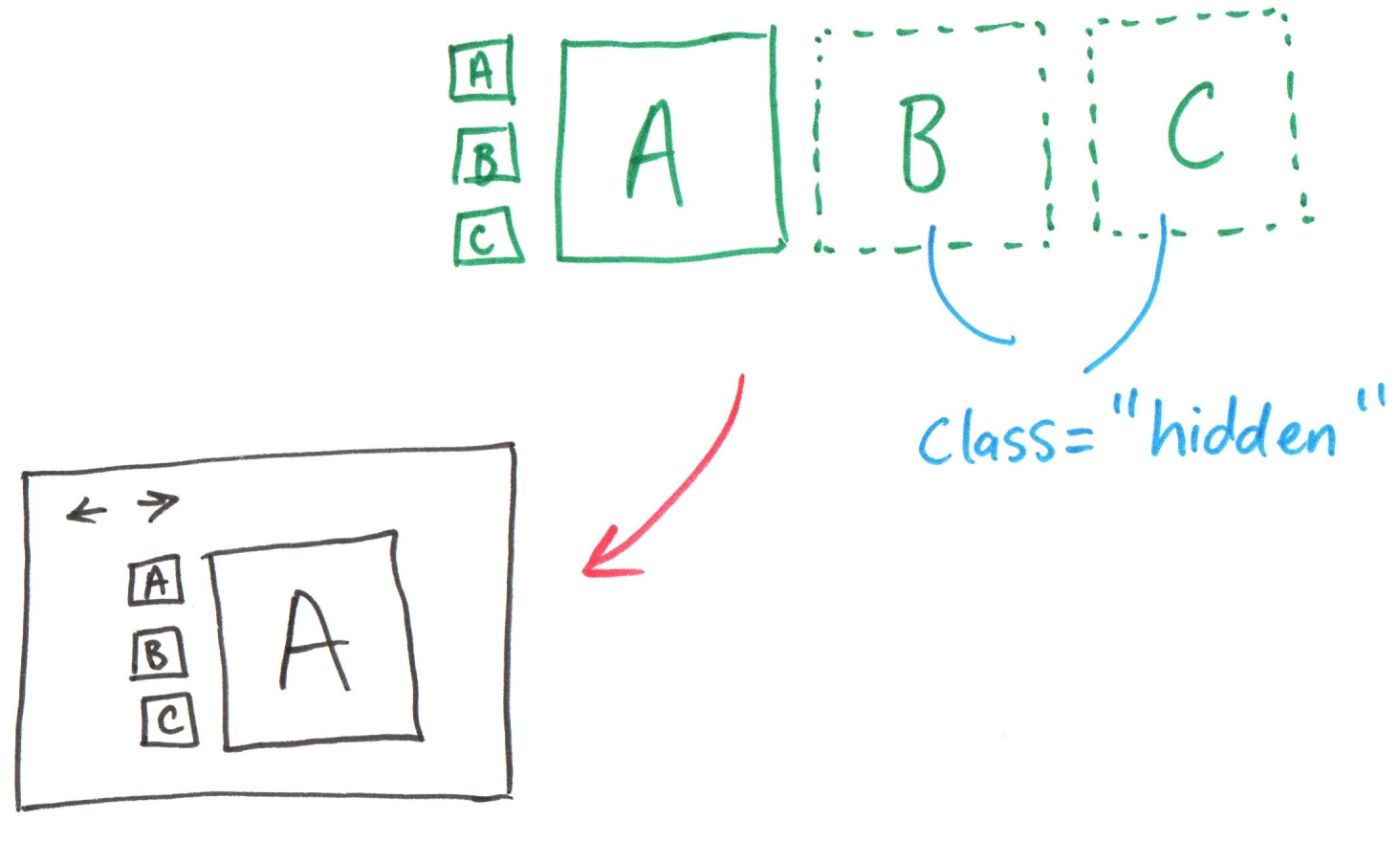
Activity: Plan Cookie Banner CSS
Working with a peer, plan the CSS classes for your cookie banner on your handout.
- Plan the CSS classes for the cookie banner.
- Plan the classes for the initial state.
Example: CSS Cookie Banner Plan
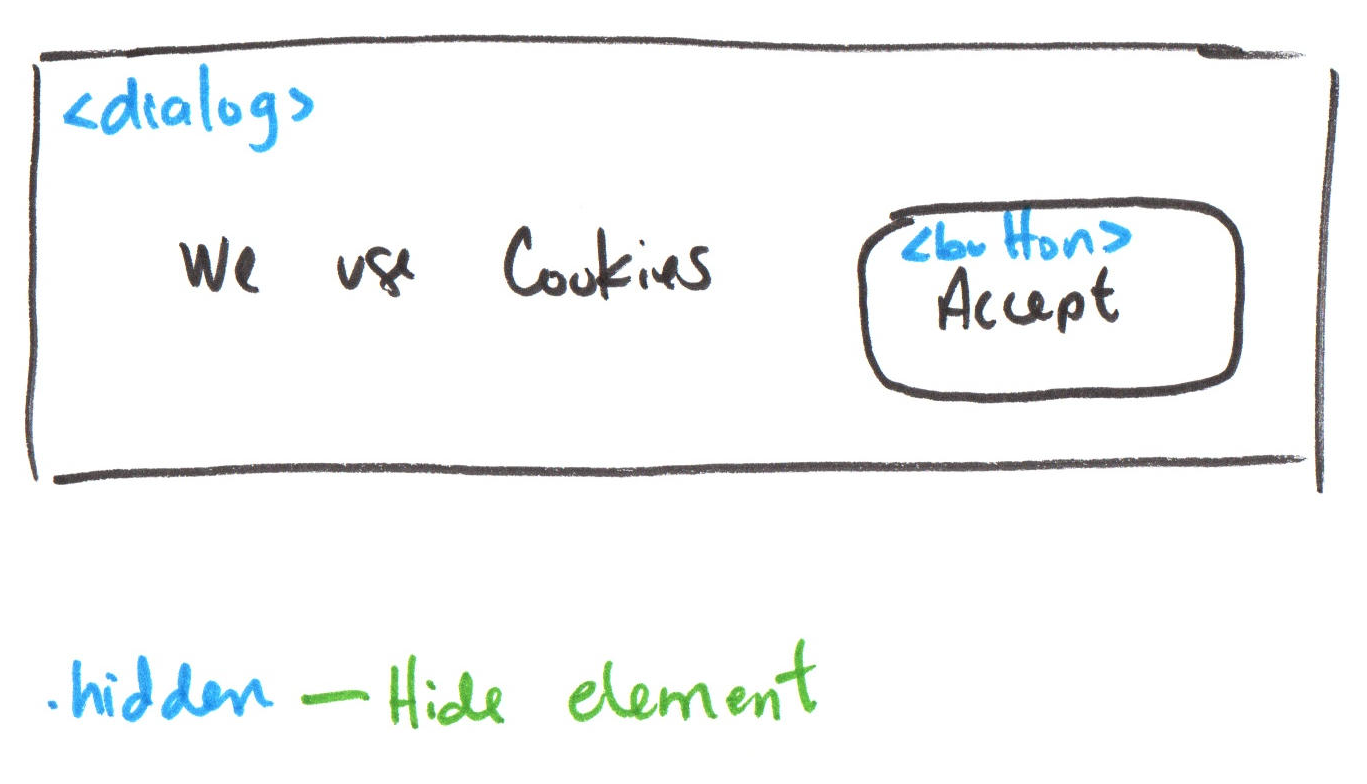
Note: Show banner initially; do not add hidden class to <dialog>.
Planning Static Interactivity
✅ Phase I
- Plan, then code all interactivity and non-interactivity HTML + CSS.
- Plan, then code initial/default page state using only CSS classes.
Phase II
- Plan, then code listening for user events in JavaScript.
- Plan, then code responding to events by adding/removing CSS classes.
JavaScript
JavaScript is a programming / scripting language.
JavaScript is useful for programming interactivity and modifying the structural (HTML) and presentation (CSS) layers in your browser.
Note: JavaScript $=$ ECMAScript
3. Plan listening for user events in JavaScript
Event: When X happens (step 3), do something (step 4).
Common Events
ready: when the page loadsclick: when the user clicks/taps an elementresize: when user resizes browser window
Give elements a unique ID (id=) to be able to listen to events.
<button id="buttonA">...</button>
CSS – ID Selector
IDs (id=) are unique – only 1 element per page may have this same ID.
<button id="buttonA">...</button>
Append # to the id= value to select only that one unique element.
#buttonA {
  /* CSS rules for the HTML element with id="buttonA" */
}
Example: Plan Events for Interactivity
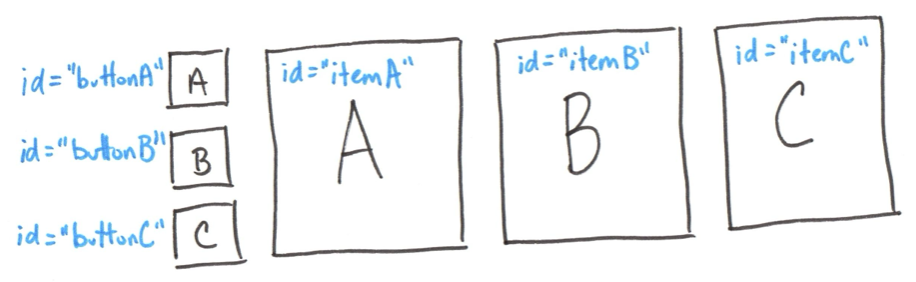
when #buttonA clicked (event): TODO (Step 4)
when #buttonB clicked (event): TODO (Step 4)
when #buttonC clicked (event): TODO (Step 4)
Activity: Plan Interactivity Element IDs
Working with a peer, plan the IDs for each of your interactivity elements on your handout.
Assign an ID to each element used in your interactivity.
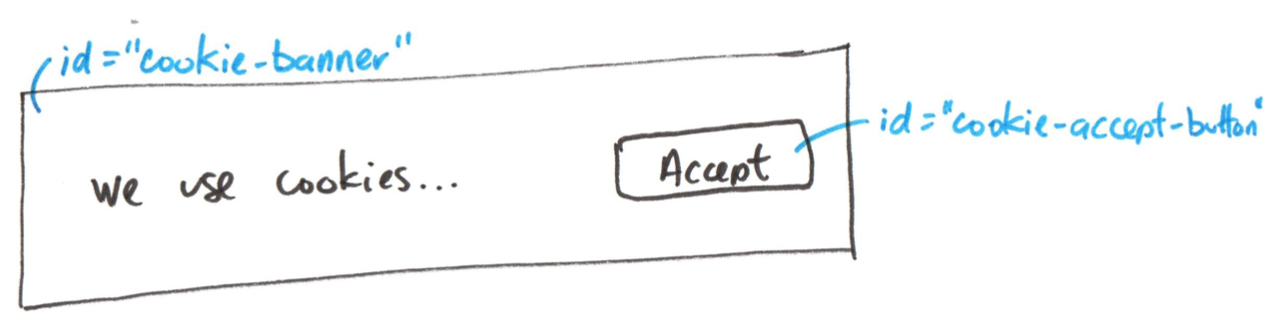
Example:
Example: Planning IDs
4. Plan responding to events by adding/removing CSS classes
When an event occurs, add or remove CSS classes from any HTML elements.
When event X happens (step 3), don't style (i.e. show) element Y (step 4):
remove .hidden from #y
When event X happens (step 3), style (i.e. hide) element Y (step 4):
add .hidden to #y
CSS
.hidden {
   display: none !important;
}
Tip: Depending on CSS precedence rules, you may need to append !important to a CSS rule.
Plan JavaScript in Pseudocode
Pseudocode: An artificial and informal language (often natural language) used to describe the instructions of a computer program.
Pseudocode Example:
when #x clicked (event):
  add .hidden to #y
  remove .hidden from #z
#xis the element withid="x".hiddenis a CSS class
Note: Your pseudocode must include selectors and class names for credit.
Example: Plan Responding to Events
when #buttonA clicked (event):
  remove .hidden from #itemA
  add .hidden to #itemB
  add .hidden to #itemC
Activity: Plan Interactivity Pseudocode
Working with a peer, plan the interactivity pseudocode on your handout.
Interactivity CSS Classes:
.hidden {
   display: none !important;
}
Pseudocode Example:
when #x clicked (event):
  add .hidden to #y
  remove .hidden from #z
Example: Interactivity Pseudocode Plan
when #cookie-accept-button clicked:
    add .hidden to #cookie-banner
Planning Static Interactivity
✅ Phase I
- Plan, then code all interactivity and non-interactivity HTML + CSS.
- Plan, then code initial/default page state using only CSS classes.
✅ Phase II
- Plan, then code listening for user events in JavaScript.
- Plan, then code responding to events by adding/removing CSS classes.
Example: Interactivity Planning Sketch
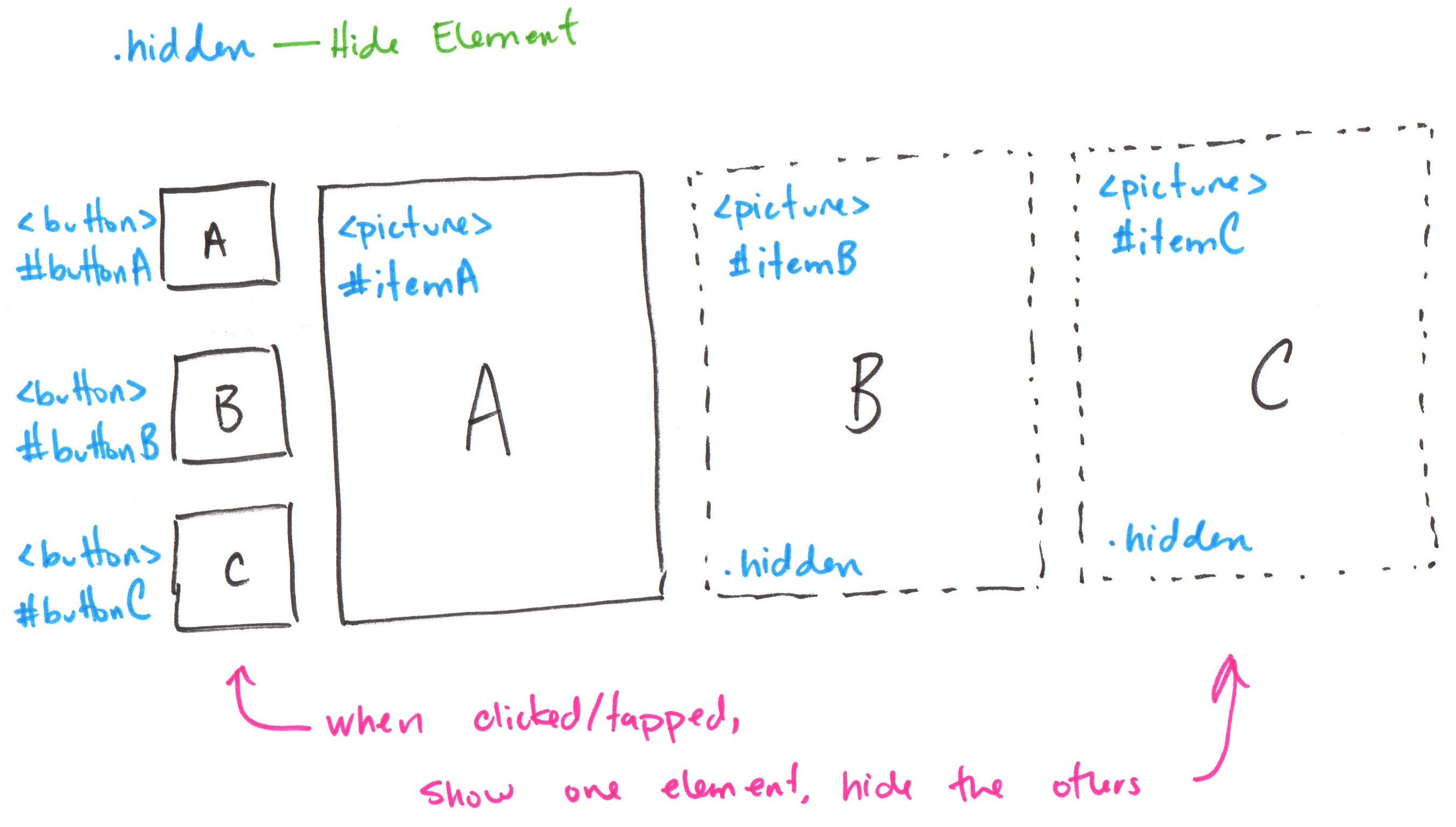
This is how your interactivity planning sketches should look in your project.
Gotchas: Planning Interactivity
-
Remember the CSS selectors for
class=andid=.
-
Every
id=must be unique for the page. -
.hiddenis nothing special. (You can rename it!) It's simply a CSS class:.invisible {display: none !important;} -
Avoid animation for now. You've got enough to learn.
Tips: CSS for Interactivity
-
You may need to use flexboxes inside flexboxes.
-
Use the
positionproperty to arrange elements.Tip: You will probably also need to use
top,left,bottom,right -
Place elements on top of one another using
z-index. -
Try appending
!importantto CSS rules if the styling doesn't change when adding/removing classes.