INFO 1300: Coding Interactivity Using Snippets
Class 21: Interactivity with Snippets
- Review: Implementing Static Interactivity
- Coding Interactivity with Code Snippets
- Coding a Gallery with Code Snippets
- Selecting Snippets
- Troubleshooting Tips
Copyright 2026, Kyle J. Harms
Review: Implement Static Interactivity
✅ Phase I
- Plan, then code all interactivity and non-interactivity HTML + CSS.
- Plan, then code initial/default page state using only CSS classes.
Phase II
- Plan, then code listening for user events in JavaScript.
- Plan, then code responding to events by adding/removing CSS classes.
Review: Phase I Implementation Example
- Plan, then code all interactivity and non-interactivity HTML + CSS.
- Plan, then code initial/default page state using only CSS classes.
<dialog open id="cookie-banner" class="banner">
  <p>This site remembers the tickets in your cart.</p>
  <button id="cookie-accept-button" class="button">Got it</button>
</dialog>
.hidden {
  display: none !important;
}
Review: Interactivity JavaScript
New JavaScript File:
scripts/cookie-banner.js
Load JavaScript:
  <script src="scripts/jquery-4.0.0.min.js"></script>
  <script src="scripts/cookie-banner.js"></script>
</body>
Implement Static Interactivity
✅ Phase I
- Plan, then code all interactivity and non-interactivity HTML + CSS.
- Plan, then code initial/default page state using only CSS classes.
Phase II
- Plan, then code listening for user events in JavaScript.
- Plan, then code responding to events by adding/removing CSS classes.
Interactivity with Code Snippets
Code Snippets
Snippets are code examples with some steps missing. (i.e. completion problem)
Idea: Code interactivity through example-based programming.
Example: When the user clicks on an element:
$("TODO: CSS selector").on("click", function () { // ← click event

  TODO: response to event

}) // ← click event
Why Snippets?
There is no pre-req for this course. While you may know programming, many of your peers may not have learned it yet.
Example-based programming (snippets) is an evidence-based approach to program without writing the syntax yourself using completion problems (examples with key steps missing).
- Each snippet is a building block.
- Assemble the building blocks to create your interactivity.
Example Interactivity Snippets
Event Snippet: On-Click Element
$("TODO: CSS selector").on("click", function () { // ← click event
  // ↓ action snippets ↓
  TODO: action snippet(s)
  // ↑ action snippets ↑
}) // ← click event
Action Snippet: Add CSS Class to Element
$("TODO: CSS selector").addClass("TODO: CSS class name")
Action Snippet: Remove CSS Class from Element
$("TODO: CSS selector").removeClass("TODO: CSS class name")
Programming with Snippets
-
✅ Plan your interactivity using pseudocode.
-
Copy pseudocode into
.jsfile. -
Format the pseudocode as JavaScript comments (select it,
Ctrl+/orCmd+/).// This is a commentExample:
// when #buttonB clicked:// add .hidden to #itemA// remove .hidden from #itemB// add .hidden to #itemC
Programming with Snippets (Autocomplete)
-
Use Codespaces' autocomplete to add the snippet for each line of pseudocode.
- Start typing the type of snippet:
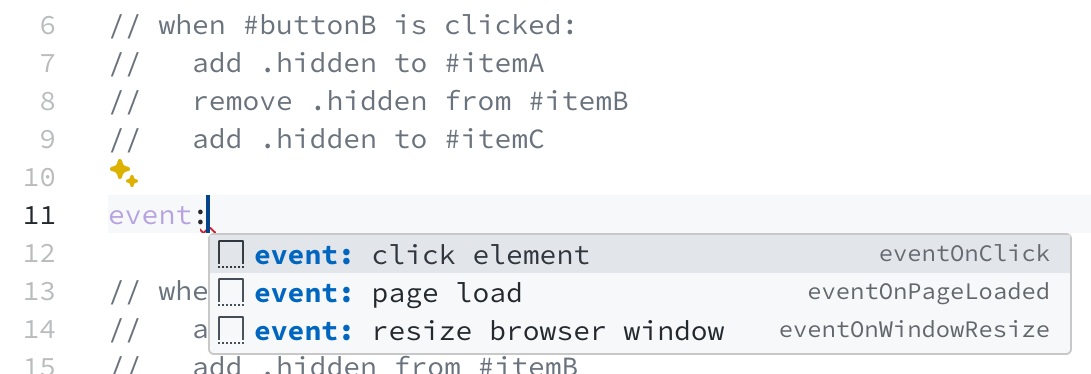
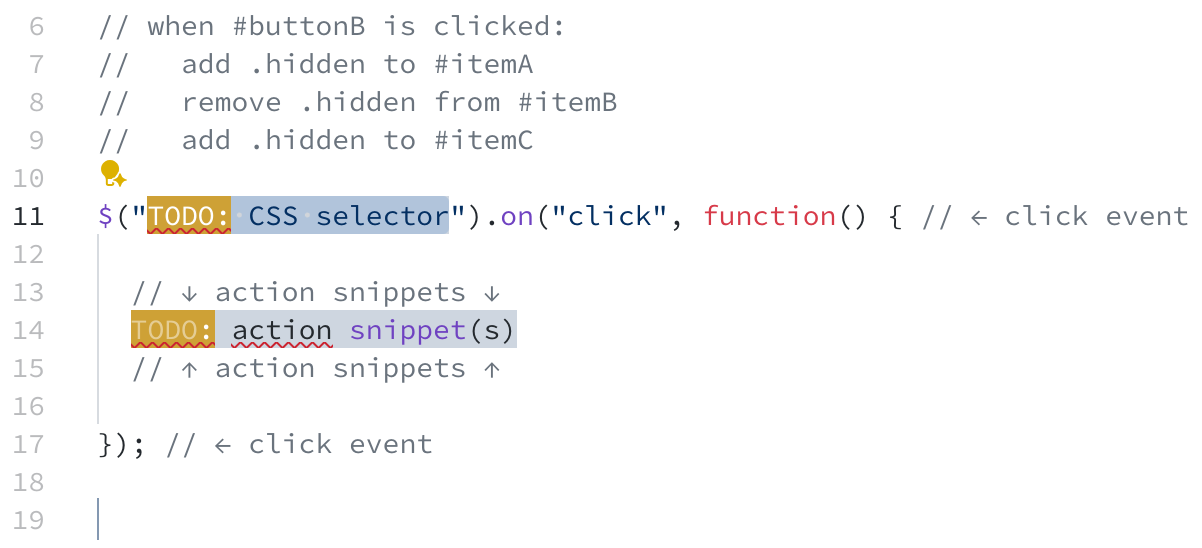
event:,action:, orif: - Select the desired snippet from the autocomplete list.
- Complete the first
TODOin the snippet. - Press
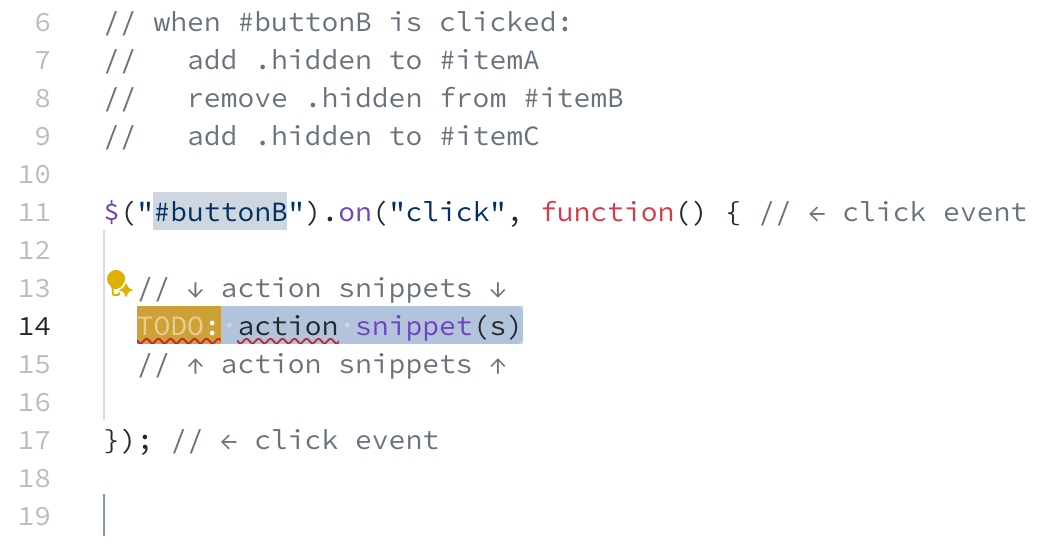
TABto move to the nextTODOand complete it. - Repeat until all
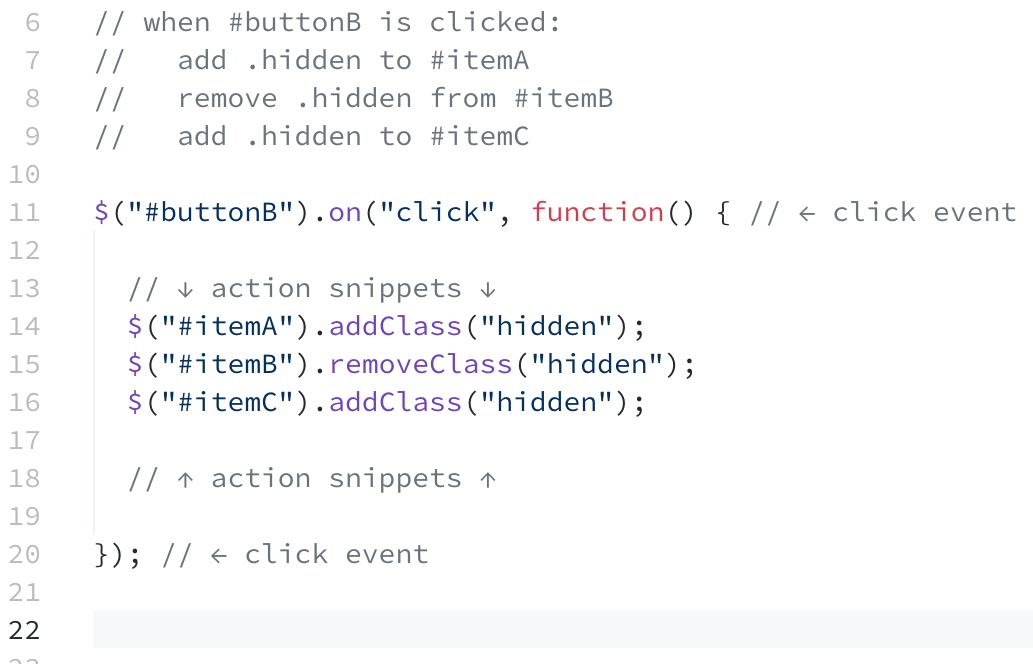
TODOs are completed.
- Start typing the type of snippet:
Change only the TODOs. Edit anything else = 0 credit. No leniency.
Snippet Types
event: When
event: click element
event: page ready
event: resize browser window
event: modal closed
action: Do
action: add css class
action: remove css class
action: open modal
action: close modal
action: debug console message
if: Choose
if: browser narrow or wide
if: element has css class
event: snippets hold action: and if: snippets.
if: snippets hold action: snippets.
if: Snippets
An if: snippet doesn't do anything.
It chooses which action: snippets execute.
Pseudocode Plan
when #hamburger clicked:
  if #nav has .hidden:
    remove .hidden from #nav
  else:
    add .hidden to #nav
Snippets Plan
event: click element
  if: element has css class
    action: remove css class
  (else)
    action: add css class
How to: Snippet Autocomplete – Type
- Type the type of snippet:
event:,action:, orif:
How to: Snippet Autocomplete – Select
- Select the desired snippet from the autocomplete list.
How to: Snippet Autocomplete – Tab
- Complete the first
TODOin the snippet. - Press
TABto move to the nextTODOand complete it.
How to: Snippet Autocomplete – Complete
- Repeat until all
TODOs are completed.
Demo: Gallery Snippets
✅ Event Snippet: On-Click Element
event: click element
✅ Action Snippet: Add CSS Class
action: add css class
✅ Action Snippet: Remove CSS Class
action: remove css class
Pseudocode Plan
when #buttonA clicked:
  remove .hidden from #itemA
  add .hidden to #itemB
  add .hidden to #itemC

when #buttonB clicked:
  add .hidden to #itemA
  remove .hidden from #itemB
  add .hidden to #itemC

when #buttonC clicked:
  add .hidden to #itemA
  add .hidden to #itemB
  remove .hidden from #itemC
Demo: Debug Console Message
when the page loads:
  log "page ready" to the console
Demo: Is the Screen Wide or Narrow?
when the page loads:
  if window is narrow:
    log "page ready on narrow screen" to the console
  else (if window is wide):
    log "page ready on wide screen" to the console
event: Snippets
event: page ready
Activity: Pseudocode ➜ Snippets
Identify the snippets needed to implement this on your handout sheet.
when #cookie-accept-button clicked:
  add .hidden to #cookie-banner
Activity: Pseudocode ➜ Snippets
Working with a peer, implement the following pseudocode using snippets in the activity codespace.
Pseudocode Plan
when #cookie-accept-button clicked:
  add .hidden to #cookie-banner
Snippets Plan
event: click element
  action: add css class
Example: Cookie Banner Snippets
// when #cookie-accept-button clicked:
//   add .hidden to #cookie-banner

$("#cookie-accept-button").on("click", function () { // ← click event

  // ↓ action snippets ↓
  $("#cookie-banner").addClass("hidden")
  // ↑ action snippets ↑

}) // ← click event
Professionalism: Troubleshooting Your Own Code
In industry, you will troubleshoot your own code; there are no office hours.
Yes, AI can do it for you.
However, you still need to know how to troubleshoot your own code to be a successful developer.
The best way to learn to troubleshoot is to practice it!
Troubleshooting Interactivity
- Did you load the JavaScript file in the HTML?
- Is the JavaScript loaded as the very last element in the
<body>? - Is jQuery loaded before your JavaScript file?
- Do all of your interactivity elements have a unique ID? (
id="") - Does your code match the snippet exactly? (Only the
TODOs change.) - Did you forget the
#in the selector in the snippet? - Did you mistakenly add a
.to the class name in the add/remove class snippet?
Troubleshooting Interactivity
- Are you adding a class when you should be removing one?
- Are you removing a class when you should be adding one?
- Does the CSS class exist in your CSS file?
- If the CSS class styling is subtle, temporarily make it loud:
background-color: red; - Use
action: debug console messageto test that an event works. - Is the HTML and CSS correct? Validate it!
- Are there errors in the JavaScript code? Check the console.
Activity: Troubleshoot the Cookie Banner
- Did you load the JavaScript file in the HTML?
- Is the JavaScript loaded as the very last element in the
<body>? - Is jQuery loaded before your JavaScript file?
- Do all of your interactivity elements have a unique ID? (
id="") - Does your code match the snippet exactly? (Only the
TODOs change.) - Did you forget the
#in the selector in the snippet? - Did you mistakenly add a
.to the class name in the add/remove class snippet?
- Are you adding a class when you should be removing one?
- Are you removing a class when you should be adding one?
- Does the CSS class exist in your CSS file?
- If the CSS class styling is subtle, temporarily make it loud:
background-color: red; - Use
action: debug console messageto test that an event works. - Is the HTML and CSS correct? Validate it!
- Are there errors in the JavaScript code? Check the console.
JavaScript Errors and Validation
There is no validator for JavaScript.
You must run your code and test it to check for errors.
Test your interactivity and then check the developer tools, console tab, for error messages.
No errors? Your code is valid! (Warnings are okay.)
Demo: JavaScript Validation

when #buttonA clicked:
  remove .hidden from #itemA
  add .hidden to #itemB
  add .hidden to #itemC

when #buttonB clicked:
  add .hidden to #itemA
  remove .hidden from #itemB
  add .hidden to #itemC

when #buttonC clicked:
  add .hidden to #itemA
  add .hidden to #itemB
  remove .hidden from #itemC
Activity: Cookie Banner JavaScript Validation
-
Open the Developer Tools Console tab.
-
Refresh the page.
-
Test the functionality of the interactivity.
-
When done testing, check the Console tab for any JavaScript errors. (warnings are okay.)
Note: Ignore errors for Codespaces (unrelated to your website).
All errors should list your JavaScript file as the source.
Gotcha: Assignments Require Snippets
You are required to implement the snippets using the method taught in this class.
You may insert snippets and replace the TODOs. You may not modify the snippet code (including comments) in any way.
If you modify the snippet code, including comments, or submit non-snippet JavaScript code you will receive 0 credit for the assignment. No leniency.
What's Next
Today: Milestone 3 Due Today: Homework 8 Released
Wednesday: Accessible Interactivity