Class 7: State
- Review: Last Class
- Events + Conditional Rendering
- State
- State is Asynchronous
- Summary
Review
Review: Handling Events
-
Event handler: A function that is called when the event occurs.
function eventHandler() {
  alert("Event occurred!");
} -
An event listener that listens for a specific event and calls the event handler (
eventHandler) when the event occurs.<button onClick={eventHandler}>
Click me!
</button>
Review: Function Call vs. Handler
Calling a function (e.g., handleClick()) executes the function immediately, while referencing a function (e.g., handleClick) allows it to be called later when the event occurs.
Review: Inline vs. Declared Event Handlers
Do you need to call the same event handler from multiple places? If so, declare it as a function and reference it in the event listener.
Declared Event Handler
function eventHandler() {
  alert("Event occurred!");
}
<button onClick={eventHandler}>Button 1</button>

<button onClick={eventHandler}>Button 2</button>
Inline Event Handler
<button onClick={
  () => alert("Event occurred!")}>
  Click me!
</button>
Review: Event Accessibility
Always use a <button> element for clickable actions, and provide an aria-label for screen readers if the button's content is not text.
<button type="button" ariaLabel="dismiss alert">
Never use a non-interactive element (like <div> or <span>) with an onClick handler, as this is not accessible to keyboard users and screen readers.
<div onClick={() => alert("Event occurred!")}>
Activity: Event Handler Practice
-
Using GitHub Copilot create a new
Alertcomponent with an<h3>and a<button>.<div className="alert" role="alert">
<h3>{message}</h3>
<button type="button" ariaLabel="dismiss alert">
✕
</button>
</div> -
When the button is clicked, execute
alert("TODO: dismiss alert")
Events + Conditional Rendering
Interactive User Experiences
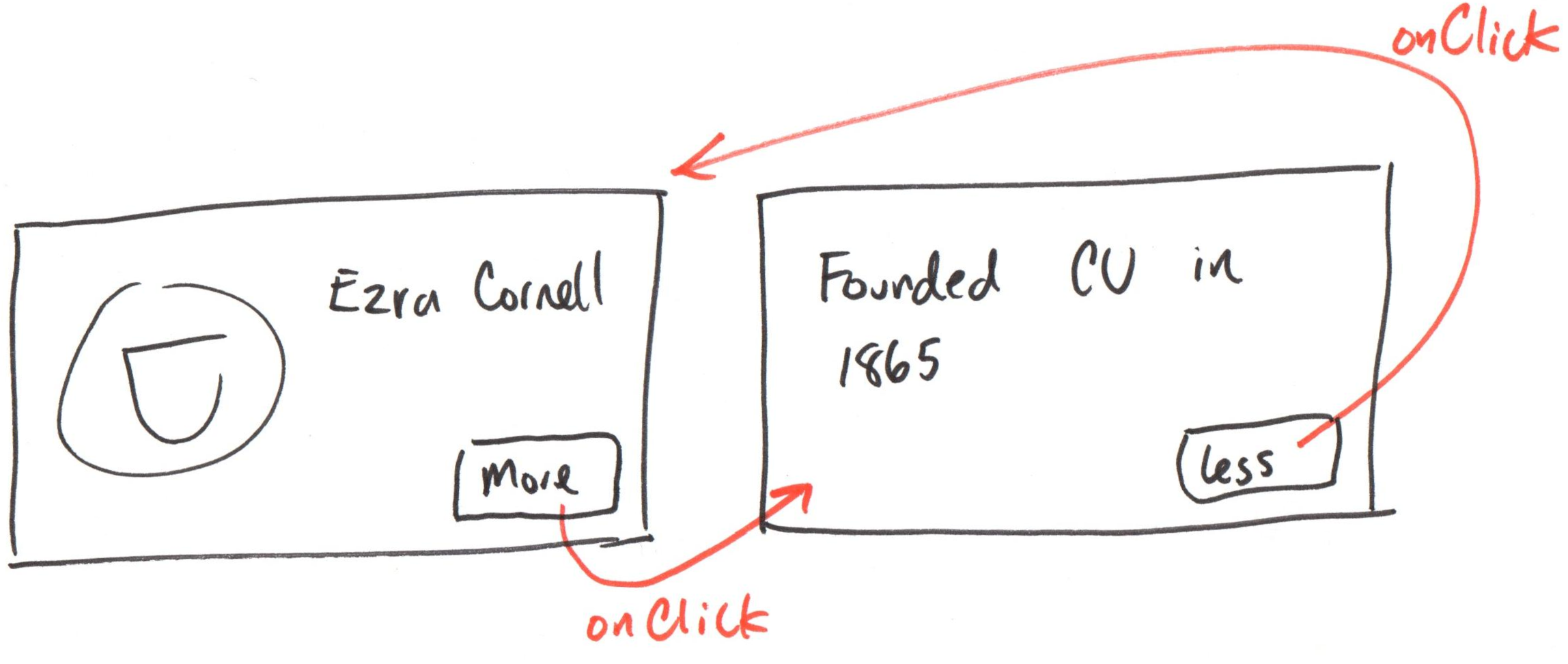
Events + Conditional Rendering = Interactive User Experiences
Activity: Interactive UX Code Reflection
Working with your peers (2-4), complete item 1.
Activity: Dismissing the Alert
Working with your peers (2-4), implement the same approach presented on the handout to dismiss the <Alert> component when dismiss button is clicked.
Use a variable to track whether the alert is dismissed, and use conditional rendering to hide the alert when it is dismissed.
let isDismissed = false;
Gotcha: Variables Do Not Persist
A component is only rendered when its function is called (Alert("")), and it returns the JSX (HTML).
export default function Alert({ message }) {
  let isDismissed = false

  return (!isDismissed &&
    <div className="alert" role="alert">
      <h3>{message}</h3>
      <button type="button" onClick={() => isDismissed = true}>✕</button>
    </div>)
}
The event handler updates the isDismissed variable, but this does not cause the component to re-render (the Alert() function must be called to re-render), so the alert is not dismissed when the button is clicked.
State
State
A "memory" for components.
State is a way for components to remember information across renders, and to trigger re-renders when that information changes.
A render happens when the component function is called (i.e. ComponentName()), and it returns JSX.
State Hook
useState() creates a state variable (stateVariable) and a function to update that variable (setStateVariable).
import { useState } from "react"

export default function ComponentName() {
  const [stateVariable, setStateVariable] = useState(initialValue)
  ...
}
When setStateVariable is called, it updates the value of stateVariable and triggers a re-render of the component.
Example: State Hook
const [count, setCount] = useState(0) // count is 0
console.log(count) // count is 0
setCount(1) // count is updated to 1, and component re-renders
Demo: Card Flip
export default function Card({ imgUri, altText, caption, citation, bgColor = "#fff" }) {
  const [isFlipped, setIsFlipped] = useState(false)

  function flipCard() {
    setIsFlipped(!isFlipped)
  }

  return (
      <button onClick={flipCard}>
        <img src="/icons/flip.svg" />
      </button>
      ...
  )
}
Activity: State Practice
Working with your peers (2-4), complete item 2 on the handout.
Activity: isDismissed State
Working with your peers (2-4), implement isDismissed as a state variable in the Alert component.
Set isDismissed to true when the dismiss button is clicked, and use conditional rendering to hide the alert when it is dismissed.
Use your handout as an example to help you implement this.
State is Asynchronous
Gotcha: State is Asynchronous
When you call the state update function (e.g., setCount(count + 1)), the state variable (count) does not update immediately. Instead, it will update on the next render.
const [count, setCount] = useState(0) // count is 0
console.log(count) // count is 0

setCount(count + 1)
setCount(count + 1)
setCount(count + 1)
console.log(count) // count is still 0, not 3
// count will be 1 on the next render
Set State with Updater Function
A state update function can also take a function, which receives the current state value and returns the new state value.
setState(prevState => newState)
setState((prevState) => newState)
setState((prevState) => {
  return newState
})
prevState is the current value of the state.
Example: State Updater Function
When you need to update state based on the previous state value, use the updater function form of the state update function.
const [count, setCount] = useState(0) // count is 0
console.log(count) // count is 0

setCount(prevCount => prevCount + 1) // count is 0, prevCount is 0
setCount(prevCount => prevCount + 1) // count is 0, prevCount is 1
setCount(prevCount => prevCount + 1) // count is 0, prevCount is 2
console.log(count) // count is still 0, not 3
// count will be 3 on the next render
Demo: State Updater Function
function flipCard() {
  setIsFlipped(prevIsFlipped => !prevIsFlipped)
}
Activity: State Updater Function Practice
Working with your peers (2-4), modify the isDismissed state update in the Alert component to use the updater function form of the state update function.
setState(prevState => newState)
Troubleshooting
Summary
- State is a way for components to remember information across renders, and to trigger re-renders when that information changes.
- State is created using the
useStatehook, which returns a state variable and a function to update that variable. - When the state update function is called, it updates the state variable and triggers a re-render of the component.
- State updates are asynchronous; the state variable does not update immediately when the state update function is called.
What's Next
Released Today: Homework 2 (We're pausing project 1 to practice state)
Friday: Practice Problem Workshop 3
Monday: No Class (February Break)
Due Tuesday: Class 8 Preparation
Due Thursday: Homework 2