Class 11: Objects in State
- Review: Last Class
- Objects
- Objects in State
- Copying Objects
- Updating Objects in State
Review
Review: "Handler" Props
A component provides prop that accepts a function reference as a value.
When the component needs to trigger an event, it calls the function reference passed as a prop.
Props
Send data into a component from the parent.
"Handler" Props
Send data out a component to the parent component!
Review: Handler Prop in Component Tree
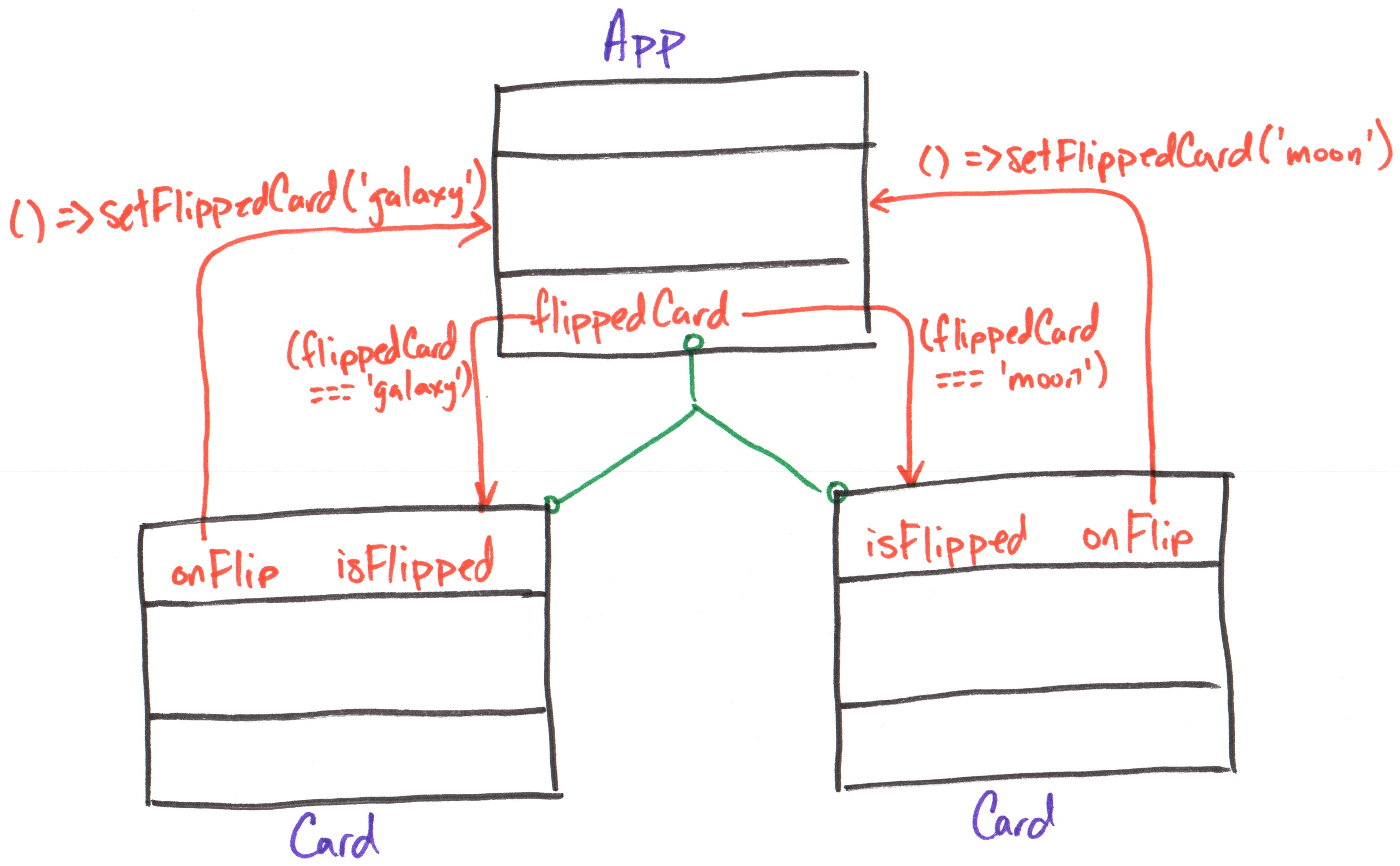
Example: Handler Prop
App
export default function App() {
  const [flippedCard, setFlippedCard] = useState(null)
  return (
    <div className="gallery">
      <Card
        imgUri="/images/galaxy.webp"
        altText="galaxy"
        isFlipped={flippedCard === 'galaxy'}
        onFlip={(showBack) =>
          setFlippedCard(showBack ? 'galaxy' : null)}
      />

      <Card
        imgUri="/images/asteroid.webp"
        altText="asteroid"
        isFlipped={flippedCard === 'asteroid'}
        onFlip={(showBack) =>
          setFlippedCard(showBack ? 'asteroid' : null)}
      />
    </div>
  )
}
Card
export default function Card({ imgUri, altText, caption,
citation, bgColor = "#fff", isFlipped, onFlip }) {
  return (
    <div className="card" style={{ backgroundColor: bgColor }}>
      <button aria-label="flip card"
        onClick={() => onFlip(!isFlipped)}>
        <img src="/icons/flip.svg" />
      </button>

      {!isFlipped && <img src={imgUri} alt={altText} />}
      {!!isFlipped && <>
        {!!caption && <Caption text={caption} />}
        {!!citation && <Citation citation={citation} />}
      </>}
    </div>
  )
}
Review: Controlled Input
A controlled input is an input element that has its value controlled by React state. (This is also known as data binding.)
The input's value is set to a state variable. When the input's value is changed, its value is reflected in the state.
Tip: Use the React documentation for the specifics of how to control different input types.
Review: Example Controlled Checkbox
const [termsAccepted, setTermsAccepted] = useState(false)

return (
  <label>
    <input type="checkbox"
      checked={termsAccepted}
      onChange={(e) => setTermsAccepted(e.target.checked)}
    />
    Accept terms and conditions
  </label>
)
Activity: Controlled Color Inputs
Working with your peers (2-4), create a controlled input for the background color.
Then, create a controlled input for the text color.

Review: Objects
Objects
An object is a collection of related data.
const colors = {
  background: "#fff",
  foreground: "#000"
}
Accessing object properties:
const backgroundColor = colors.background
const foregroundColor = colors['foreground']
Demo: Objects
  const card1 = {
    imgUri: "/images/galaxy.webp",
    altText: "galaxy",
    caption: "A galaxy is a collection of stars, gas, and dust held together by gravity.",
    citation: "Microsoft Copilot",
  }
  return (
    <div className="gallery">
      <Card
        imgUri={card1.imgUri}
        altText={card1.altText}
        caption={card1.caption}
        citation={card1.citation}
      />
    </div>
  )
Activity: Object Practice
Working with your peers (2-4), complete the first item on the handout.
Example:
const colors = {
  background: "#fff",
  foreground: "#000"
}
Objects in State
Objects in State
When we want to store related data in state, we can use an object.
const [colors, setColors] = useState({
  background: "#fff",
  foreground: "#000"
})
Demo: Object in State
const [iconStyle, setIconStyle] = useState({
  background: '#ffffff',
  foreground: '#2b1f0f'
})
<label htmlFor="icon-background">Background</label>
<input id="icon-background" type="color" value={iconStyle.background}/>

<label htmlFor="icon-foreground">Foreground</label>
<input id="icon-foreground" type="color" value={iconStyle.foreground}/>
Activity: Object in State Practice
Working with your peers (2-4), complete the second item on the handout.
const [iconStyle, setIconStyle] = useState({
  background: '#ffffff',
  foreground: '#2b1f0f'
})
Gotcha: Updating Object State
const [iconStyle, setIconStyle] = useState({
  background: '#ffffff',
  foreground: '#2b1f0f'
})
<label htmlFor="icon-background">Background</label>
<input id="icon-background" type="color"
  value={iconStyle.background}
  onChange={(event) => setIconStyle({ background: event.target.value })}
/>
Activity: What's the value of iconStyle?
Gotcha: Updating Object State
You cannot partially update an object in state (i.e. changing just one property).
<label htmlFor="icon-background">Background</label>
<input id="icon-background" type="color"
  value={iconStyle.background}
  onChange={(event) => setIconStyle({ background: event.target.value })}
/>
iconStyle: { background: event.target.value } (foreground is lost!)
Updating Objects in State
When updating an object in state, we need to create a new object with all properties, including the non-updated properties.
<label htmlFor="icon-background">Background</label>
<input id="icon-background" type="color"
  value={iconStyle.background}
  onChange={(event) => setIconStyle({
    background: event.target.value
    foreground: iconStyle.foreground
    })}
/>
Copying Objects
JavaScript Spread Operator
The JavaScript spread operator (...) allows us to create a new object by copying the properties of an existing object.
const original = { a: 1, b: 2 }
const copy = { ...original }
copy:
{ a: 1, b: 2 }
Copying Objects with Spread Operator
const original = { a: 1, b: 2 }
const copy = { ...original, a: 3 }
copy:
{ a: 3, b: 2 }
Gotcha: Where You use the Spread Operator Matters
const original = { a: 1, b: 2 }
const copy1 = { ...original, a: 3 }
const copy2 = { a: 3, ...original }
copy1:
{ a: 3, b: 2 }
copy2:
{ a: 1, b: 2 }
Activity: Copying Objects with Spread Operator
Working with your peers (2-4), complete the third item on the handout.
const original = { a: 1, b: 2 }
const copy = { ...original, a: 3 }
copy:
{ a: 3, b: 2 }
Demo: Updating Object State with Spread Operator
When updating an object in state, we can use the spread operator to create a new object that copies the existing properties and updates the desired property.
<label htmlFor="icon-background">Background</label>
<input id="icon-background" type="color"
  value={iconStyle.background}
  onChange={(event) => setIconStyle({
    ...iconStyle,
    background: event.target.value
    })}
/>
Review: Updater Functions
When updating state that depends on the previous state, use an updater function to ensure we are working with the most recent state.
setIconStyle((prevStyle) => ({
  ...prevStyle,
  background: event.target.value
}))
Activity: Object in State Practice
Working with your peers (2-4), complete the fourth item on the handout.
setIconStyle((prevStyle) => ({
  ...prevStyle,
  background: event.target.value
}))
Gotcha: State Data is Read-Only
As is the case with all state, state variables are immutable (read-only).
We cannot directly modify the properties of an object in state.
const [iconStyle, setIconStyle] = useState({
  background: '#ffffff',
  foreground: '#2b1f0f'
})

iconStyle.background = "#ff0000" // ❌ This is not allowed!
Warning: No Objects in Milestone 3
For Project 1, Milestone 3, you are not allowed to use objects or objects in state.
Use separate state variables for each piece of data.
No credit will be given if objects are used.
Summary
- Objects are collections of related data.
- When we want to store related data in state, we can use an object.
- When updating an object in state, we need to create a new object with all properties, including the non-updated properties.
- The JavaScript spread operator (
...) allows us to create a new object by copying the properties of an existing object. - When updating state that depends on the previous state, use an updater function to ensure we are working with the most recent state.
What's Next
Today: Project 1, Milestone 3 due
Wednesday: Prep for Class 12