Class 12: Rendering Lists
- Review: Last Class
- JSON
- Structuring Data in a React SPA
- Rendering Lists
Review
Review: Objects
An object is a collection of related data.
const colors = {
  background: "#fff",
  foreground: "#000"
}
Accessing object properties:
const backgroundColor = colors.background
const foregroundColor = colors['foreground']
Activity: Object Practice
Working with your peers (2-4), complete the first question on your handout.
const colors = {
  background: "#fff",
  foreground: "#000"
}
Review: Object in State
const [iconStyle, setIconStyle] = useState({
  background: '#ffffff',
  foreground: '#2b1f0f'
})
<>
  <label htmlFor="icon-background">Background</label>
  <input id="icon-background" type="color" value={iconStyle.background}/>

  <label htmlFor="icon-foreground">Foreground</label>
  <input id="icon-foreground" type="color" value={iconStyle['foreground']}/>
</>
Review: Updating Objects in State
When updating an object in state, we need to create a new object with all properties, including the non-updated properties.
<label htmlFor="icon-background">Background</label>
<input id="icon-background" type="color"
  value={iconStyle.background}
  onChange={(event) => setIconStyle((prevStyle) => ({
    background: event.target.value,
    foreground: prevStyle.foreground
  }))}
/>
Review: Updating Object State with Spread Operator
When updating an object in state, we can use the spread operator to create a new object that copies the existing properties and updates the desired property.
<label htmlFor="icon-background">Background</label>
<input id="icon-background" type="color"
  value={iconStyle.background}
  onChange={(event) => setIconStyle((prevStyle) => ({
    ...prevStyle,
    background: event.target.value
  }))}
/>
JSON
What's Next?
- ⬜ MongoDB
- ⬜ Express
- ✅ React
- ⬜ Node.js
Our React-Only Approach to Data: Hard-Coded
<Card
  imgUri="/images/galaxy.webp"
  altText="galaxy"
  caption="A galaxy is a collection of stars, gas, and dust held together by gravity."
  citation="Microsoft Copilot"
  isFlipped={flippedCard === 'galaxy'}
  onFlip={(showBack) => setFlippedCard(showBack ? 'galaxy' : null)}
/>
<Card
  imgUri="/images/asteroid.webp"
  altText="asteroid"
  caption="An asteroid is a small rocky body that orbits the sun."
  isFlipped={flippedCard === 'asteroid'}
  onFlip={(showBack) => setFlippedCard(showBack ? 'asteroid' : null)}
/>
...
Activity: Hard-Coded Data Limitations
What needs to change in this code if want to add a new "comet" item as the first item?
<AccordionItem title="What is a galaxy?"
  isExpanded={expandedItem === 0}
  onExpand={() => setExpandedItem(0)}
/>
<AccordionItem title="How do black holes work?"
  isExpanded={expandedItem === 1}
  onExpand={() => setExpandedItem(1)}
/>
<AccordionItem title="What is a pulsar?"
  isExpanded={expandedItem === 2}
  onExpand={() => setExpandedItem(2)}
/>
MERN Approach to Data: Sent from Server
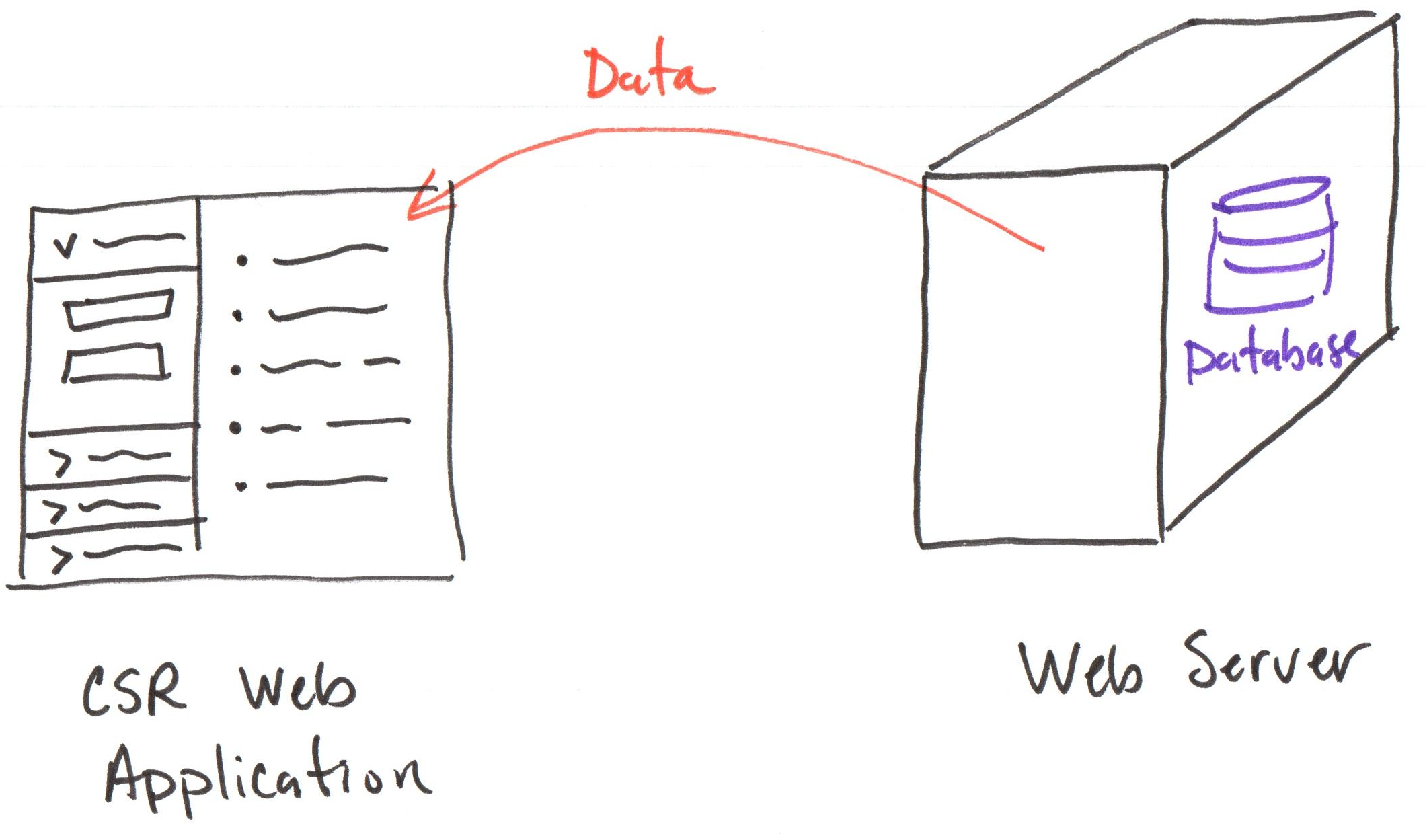
JSON: JavaScript Object Notation
JSON (pronounced "Jason")is a text-based data interchange format for structuring and exchanging data as key-value objects and arrays between systems, like client and server. Example:
{
  "name": "Alice",
  "age": 30,
  "isStudent": false,
  "hobbies": ["reading", "hiking", "coding"],
  "address": {
    "street": "123 Main St",
    "city": "Anytown",
    "state": "CA"
  }
}
Discussion: Why JSON?
Does JSON feel familiar to you? Why?
{
  "name": "Alice",
  "age": 30,
  "isStudent": false,
  "hobbies": ["reading", "hiking", "coding"],
  "address": {
    "street": "123 Main St",
    "city": "Anytown",
    "state": "CA"
  }
}
Structuring Data in a React SPA
JavaScript Arrays
An array is an ordered list of values (starting at index 0), which can be of any type, including objects and other arrays.
const empty = [];
const colors = ["red", "green", "blue"];
const mixed = [42, "hello", { name: "Alice" }, [1, 2, 3]];
Accessing array elements:
const firstColor = colors[0]; // "red"
const secondHobby = mixed[3][1]; // 2
Example: JavaScript Arrays with Objects
const people = [
  { name: "Ezra" },
  { name: "Andrew" }
]
Accessing properties of objects in an array:
const firstPersonName = people[0].name; // "Ezra"
const secondPerson = people[1]; // { name: "Andrew" }
Demo: Arrays of Objects
const cardData = [
  {
    id: 'galaxy',
    imgUri: "/images/galaxy.webp",
    altText: "galaxy",
    caption: "A galaxy is a collection of stars, gas, and dust held together by gravity.",
    citation: "Microsoft Copilot",
  },
  {
    id: 'asteroid',
    imgUri: '/images/asteroid.webp',
    altText: 'asteroid',
    caption: 'An asteroid is a small rocky body that orbits the sun.',
  },
  ...
]
Why id?
const card1 = {
  imgUri: "/images/galaxy.webp",
  altText: "galaxy",
  caption: "A galaxy is a collection
    of stars, gas, and dust held together
    by gravity.",
  citation: "Microsoft Copilot",
  id: 'galaxy',
}
<Card
  imgUri={card1.imgUri}
  altText={card1.altText}
  caption={card1.caption}
  citation={card1.citation}

  isFlipped={flippedCard === card1.id}
  onFlip={(showBack) =>
    setFlippedCard(showBack ? card1.id : null)}
/>
Activity: Arrays of Objects
Working with your peers (2-4), complete the second item on the handout.
const cardData = [
  {
    imgUri: "/images/galaxy.webp",
    altText: "galaxy",
    caption: "A galaxy is a collection of stars, gas, and dust held together by gravity.",
    citation: "Microsoft Copilot",
  },
  {
    imgUri: '/images/asteroid.webp',
    altText: 'asteroid',
    caption: 'An asteroid is a small rocky body that orbits the sun.',
  },
  ...
]
Rendering Lists
Rendering Lists
Render a component for each item in an array.
Discussion: How do we iterate over the items in an array?
- for loop
forEachiteratormapiterator (React's preferred method)
JavaScript's map Function
The map function is an array method that creates a new array by applying a provided function to each element of the original array.
const numbers = [1, 2, 3];
const doubled = numbers.map((item, index) => item * 2); // [2, 4, 6]
Rendering Lists with map
const people = [
  { name: "Ezra" },
  { name: "Andrew" }
]
return <ul>
  {people.map((person, index) => (
    <li>{person.name}</li>
  ))}
</ul>
Demo: Rendering Lists with map
{cardData.map((card, index) => (
  <Card
    key={card.id}

    imgUri={card.imgUri}
    altText={card.altText}
    caption={card.caption}
    citation={card.citation}
    bgColor={card.bgColor}

    isFlipped={flippedCard === card.id}
    onFlip={(showBack) => setFlippedCard(showBack ? card.id : null)}
  />
))}
Gotcha: Rendering key
When rendering lists in React, each item should have a unique key prop to help React identify which items have changed, are added, or are removed. (This improves performance and helps prevent bugs.)
{cardData.map((card, index) => (
  <Card
    key={card.id} // <-- unique key for each item
  />
))}
Activity: Rendering Lists with map
Working with your peers (2-4), complete the third item on the handout.
{cardData.map((card, index) => (
  <Card
    key={card.id}

    imgUri={card.imgUri}
    altText={card.altText}
    caption={card.caption}
    citation={card.citation}
    bgColor={card.bgColor}

    isFlipped={flippedCard === card.id}
    onFlip={(showBack) => setFlippedCard(showBack ? card.id : null)}
  />
))}
Summary
- Objects are collections of related data, and we can store them in state to manage complex data structures.
- JSON is a text-based format for structuring and exchanging data, often used for communication between client and server.
- Arrays are ordered lists of values, and we can use the
mapfunction to render a component for each item in an array. - When rendering lists in React, it's important to provide a unique
keyprop for each item to help React manage updates efficiently.
What's Next
Released Today: Project 1, Final Milestone
Friday: Objects in State & Rendering Lists Practice Problem Workshop
Monday: MongoDB!