Class 7: Bindings
- Review: Last Class
- Bidirectional Data Binding with
v-model - Attribute Bindings with
v-bind - Style Bindings
- Custom Events
Review: Last Class
Review: TailwindCSS
TailwindCSS is a utility-first CSS framework for rapidly building custom user interfaces.
Instead of writing custom CSS styles, you apply pre-defined utility classes directly in your HTML or Vue.js templates.
Example:
<button class="bg-blue-500 text-white font-bold py-2 px-4 rounded">
  Next
</button>
Bindings
Vue.js Bindings
Use bindings to connect your Vue.js component's data and methods to the HTML elements in your template.
<script setup>
import { ref } from 'vue'
const message = ref('hello')
</script>

<template>
  <p>Message is: {{ message }}</p>
  <input v-model="message" />
</template>
v-model Directive
The v-model directive creates a two-way binding between a form input element and a data property in your Vue.js component.
<script setup>
import { ref } from 'vue'
const message = ref('hello')
</script>

<template>
  <p>Message is: {{ message }}</p>
  <input v-model="message" />
</template>
When the user types into the input field, the value of the message ref is automatically updated. Conversely, if you programmatically change the value of message, the input field will reflect that change.
Attribute Bindings (v-bind)
Use the v-bind directive (: shorthand) to bind HTML attributes to data properties in your Vue.js component.
<script setup>
import { ref } from 'vue'
const isDisabled = ref(true)
</script>

<template>
  <button :disabled="isDisabled">Submit</button>
</template>
Style Bindings
Use v-bind with the style attribute to bind inline styles to data properties in your Vue.js component.
<script setup>
import { ref } from 'vue'
const weight = ref("bold")
</script>

<template>
  <p :style="{ fontWeight: weight }">
    This text is bold.
  </p>
</template>
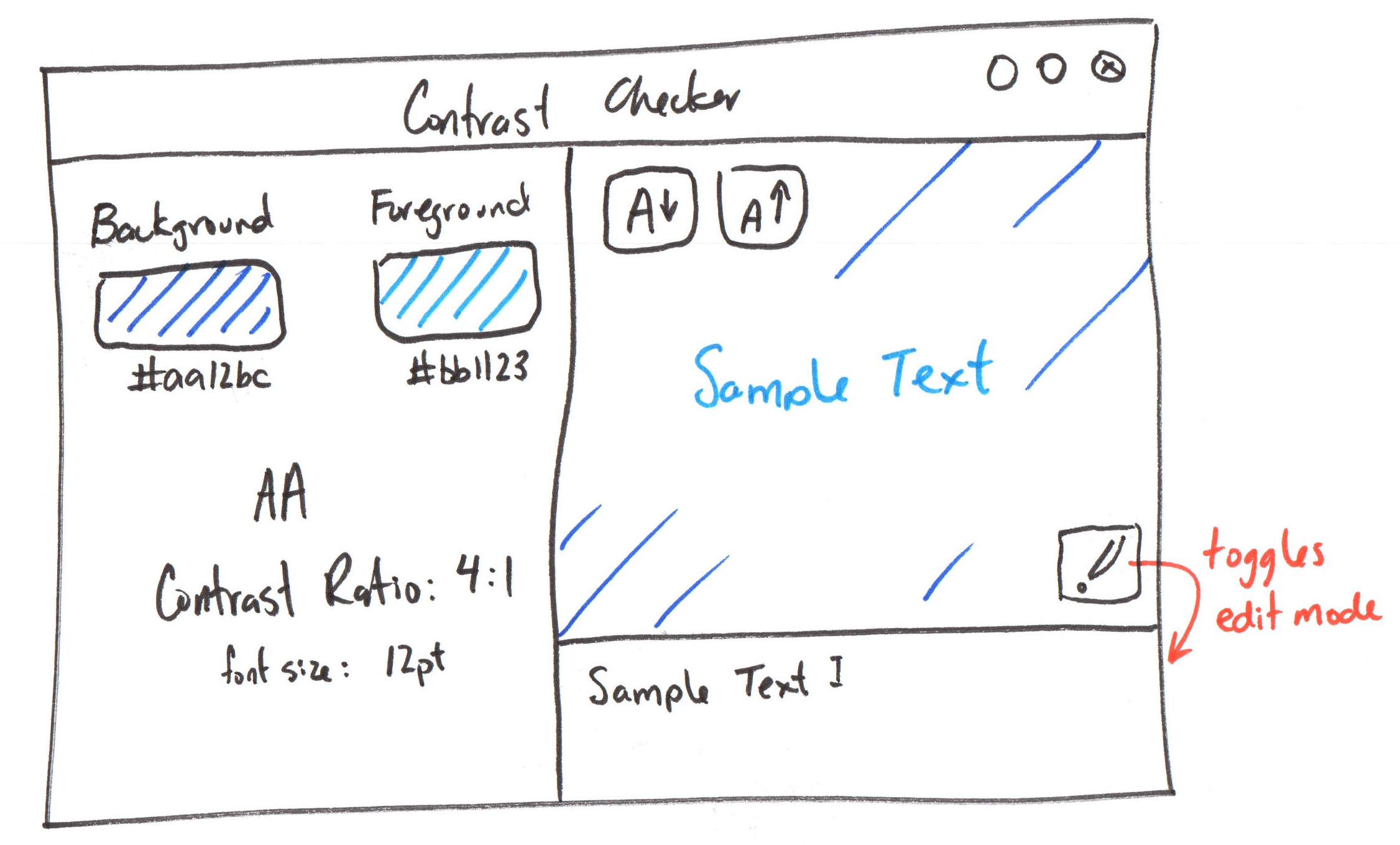
Homework 3
Accessibility Contrast Checker Prototype App
Studio: Homework 3
Custom Events
Custom Events
Declare custom events in your Vue.js component to allow parent components to listen for and respond to specific actions or changes.
<script setup>
import { ref } from 'vue'
defineEmits(['countIncremented'])

const count = ref(0)
function incrementCount() {
  count.value++
  emit('countIncremented', count.value)
}
</script>
Listening for Custom Events
In the parent component, you can listen for the custom event using the v-on directive (@ shorthand) and handle it with a method.
<script setup>
function handleCountIncremented(newCount) {
  console.log('Count incremented to:', newCount)
}
</script>

<template>
  <Counter @countIncremented="handleCountIncremented" />
</template>
Activity: Custom Event Practice
Working with your peers (2-4), complete the handout.
Counter.vue
<script setup>
import { ref } from 'vue'
defineEmits(['countIncremented'])

const count = ref(0)
function incrementCount() {
  count.value++
  emit('countIncremented', count.value)
}
</script>
App.vue
<script setup>
function handleCountIncremented(newCount) {
  console.log(
    'Count incremented to:',
    newCount)
}
</script>

<template>
  <Counter
    @countIncremented="handleCountIncremented" />
</template>
Summary
- Bidirectional data binding with
v-modelfor input elements. - Attribute bindings with
v-bindfor dynamic attributes. - Style bindings for dynamic inline styles.
- Declare custom events (
defineEmits) and$emitthem from child components. - Listen for custom events in parent components using
v-onor@.
What's Next?
Next Class: Installable Prototype App
Homework: Complete the released parts of Homework 3. (class preparation)
Looking Forward
Does your computer and phone support WebGPU?
Visit https://enablegpu.com/ and enable it in your browser if necessary.