Homework 1: Development Environment
In this homework, you'll set up the development environment needed to program prototype web apps.
Learning Objectives
- Set up a web development environment using GitHub Codespaces.
Help & Support Resources
We want you to get the help and support you need. Use the course's support resources for help with this assignment.
Instructions
Follow the instructions below to complete this assignment.
Part I: Install Chrome/Chromium
Credit: 0 points
Chrome is a proprietary web browser created by Alphabet Inc. Google profits off the information it learns about you when using its browser. It shares this information with third parties, including governments, without notice nor transparency.
You may install Google Chrome or the open source version, Chromium. Chromium is privacy preserving, like Firefox.
Download and install Chrome.
Part II: GitHub Account
Credit: 0 points
You'll need an active GitHub account to complete your assignments in this course. If you already have an account, you may use it; skip this part if you already have a github.com (not github.coecis.cornell.edu) account.
Visit https://github.com and create an account if you don't already have one. We suggest using your Cornell email address. But you can use email address that you prefer.
Tip: Choose a professional username you will be happy with until the end of time.
You will use this GitHub account for the entire semester. Do not change your username during the semester. If you change your username, you will be locked out of your assignment repositories.
Part III: GitHub Education Benefits
Credit: 0 points
Generative AI has become and essential tools for developers. You will need the GitHub education benefits to effectively use GitHub Copilot this semester.
Sign-up for the GitHub education benefits by joining GitHub Education.
Alternatively, you may purchase GitHub Copilot Pro if you'd prefer not to use GitHub Education.
Part IV: Grant Access to the Course GitHub Organization
Credit: 0 points
We'll need to create your assignment repositories for you. In order to do that, you'll need to grant this course permission to create repositories for you. (This is the only permission you are granting us; we cannot access your private repositories or any other information in your GitHub account.)
Join the GitHub organization for this course:
-
Visit https://landrace.infosci.cornell.edu/courses/info4340-2026sp in your web browser.
-
Authorize landrace.infosci.cornell.edu to access your GitHub account in order to join the cornell-info4340-2026sp GitHub organization.
Login with the GitHub.com account that you want to use for all assignments this semester.
Once you authorize the access, you may not change or switch your GitHub account for this course. You will need to use this account for the entire semester.
dangerDo not change your username during the semester. If you change your username, you will be locked out of your assignment repositories.
-
Accept the invitation to join the cornell-info4340-2026sp GitHub organization.
Once you've authorized landrace.infosci.cornell.edu to access your GitHub account, you will be invited to join the organization.
You will receive an email from GitHub inviting you to join the
cornell-info4340-2026sporganization. Click the link to accept this invitation.tipCheck your spam folder for the organization invite; it may get filtered to your spam folder.
Part V: Homework Repository
Credit: 0 points
Each student will submit their homeworks to a private repository created specifically for them.
To submit your homework for credit, follow these instructions; you must submit your homework to the repository created through landrace.infosci.cornell.edu to receive credit.
Do not create your own repository on github.com. We will be unable to grade a manually created repository.
Do not rename the repository we create for you. If you rename the repository, we will be unable to grade it.
-
Create your homework repository.
Visit https://landrace.infosci.cornell.edu/courses/info4340-2026sp/repos/hw1 in your browser to create your homework repository.
-
Open your homework repository in GitHub.
After creating your repository, visit https://landrace.infosci.cornell.edu/courses/info4340-2026sp/repos/hw1 in your browser and follow the link to open the repository on github.com
Part VI: GitHub Codespaces
Credit: 0 points
You will edit your code in GitHub Codespaces this semester. Codespaces is a cloud-based development environment that is hosted by GitHub. This means you can access your development environment from any computer with an internet connection and a web browser.
You may work on your assignments this semester from any computer, including lab computers or library loaner laptops. You only need a web browser and an internet connection to access your development environment.
-
Open the repository in a codespace.
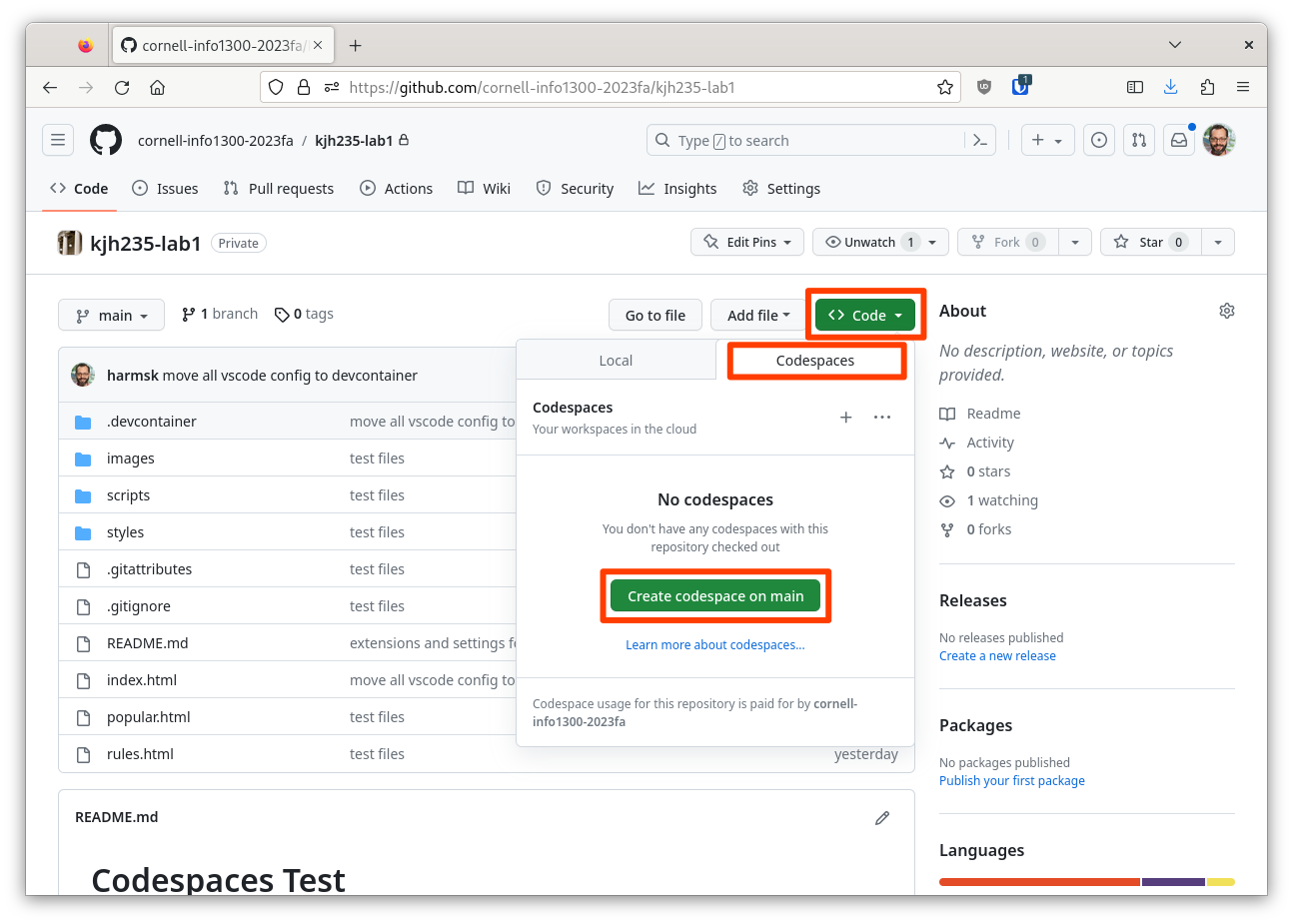
First, click the "Code" button, then open the "Codespaces" tab, lastly click the "Create codespace on main" button.
-
The Codespace can take a while to initialize. Wait until the status bar at the bottom of window stops updating before you do anything else.
Part VII: Development Web Server
Credit: 0 points
You'll need a web server to see the app you're developing.
From the Codespace's menu, select Run, and then Run Without Debugging.
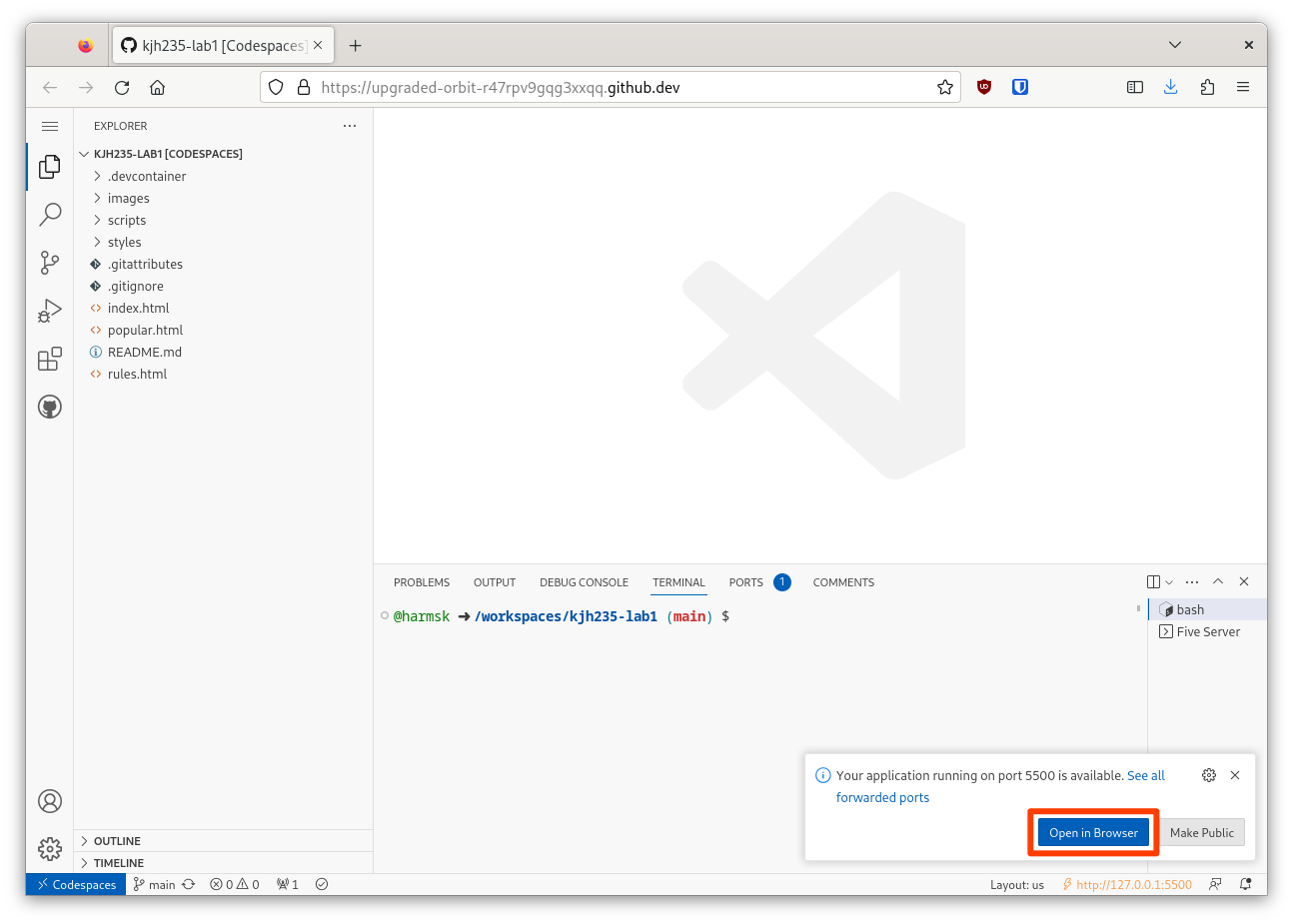
Once the web server has started, you'll be able to view your website in a web browser by clicking "Open in Browser."
Part VIII: Edit the Prototype App
Credit: 10 points. Full credit provided your name appears on the main page after launching the development web server. (No partial credit.)
Change You did it! to your name.
Check the web browser to see that the main page updated with your name. It should update automatically.
You need not stop/start the web server to see changes. They will appear automatically (though you may need to refresh your browser).
Submission
You will submit your coding assignments using Git and a submission form.
Important! You must stage, commit, and push your submission via Git and then complete the submission form to receive credit. The graders cannot grade what they cannot see; the graders cannot see any code in your codespace. When you stage, commit, and push, the graders will be able to see your code in their own codespace to grade your work. When you complete the submission form you notify the graders that your work is ready to be graded.
Failure to submit via Git and complete the submission form will result in 0 credit for the assignment. No leniency is provided, you must do both for credit.
-
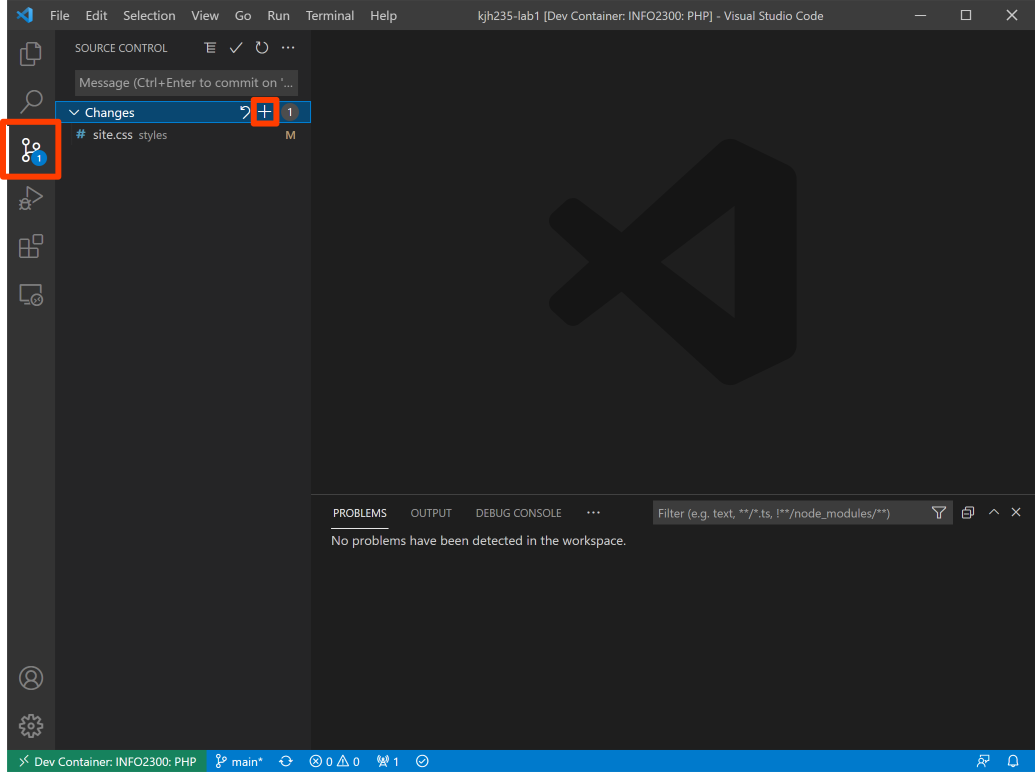
First, open Source Control in your codespace. Next, you need to stage your changes. To stage your changes you need to tell Git which files you want to keep a version of.
Open Code's Source Control pane from the Activity Bar. Then click the + button to stage each file you want to submit.
-
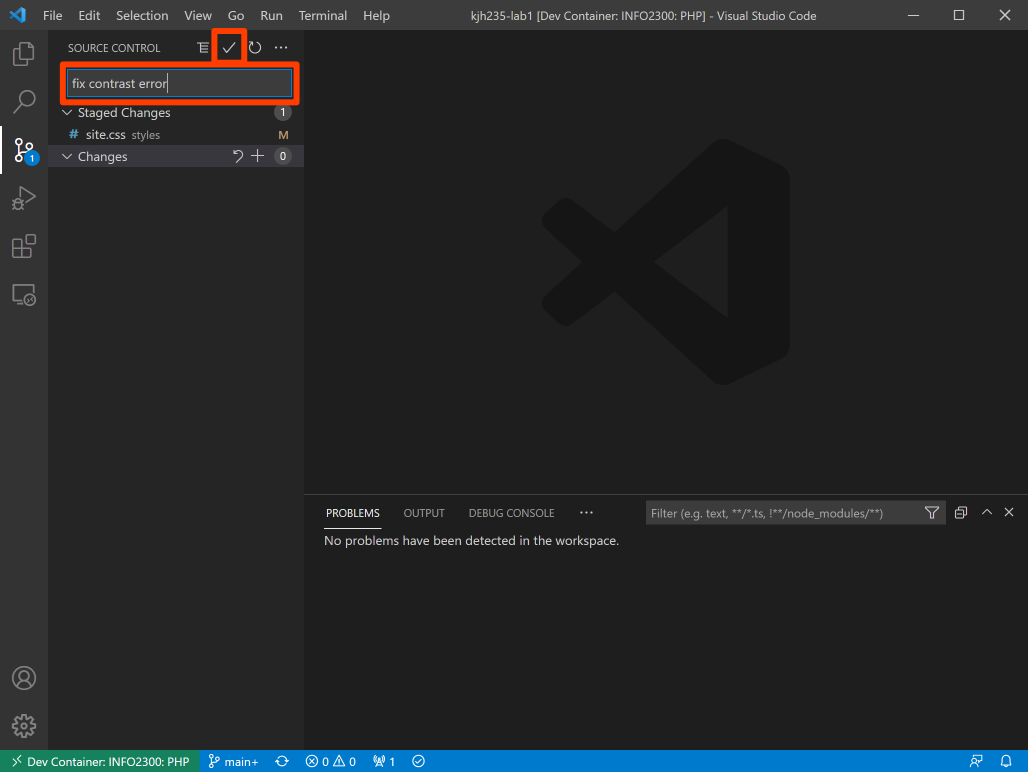
Next you'll need to commit your changes. Write a message about what you are committing and then click the ✓ button to commit your changes. Now your changes are stored as a version in your local git repository.
tipIn a version control tool sometimes you need to go back and find a previous revision. Writing accurate commit messages can later help you find that revision.
-
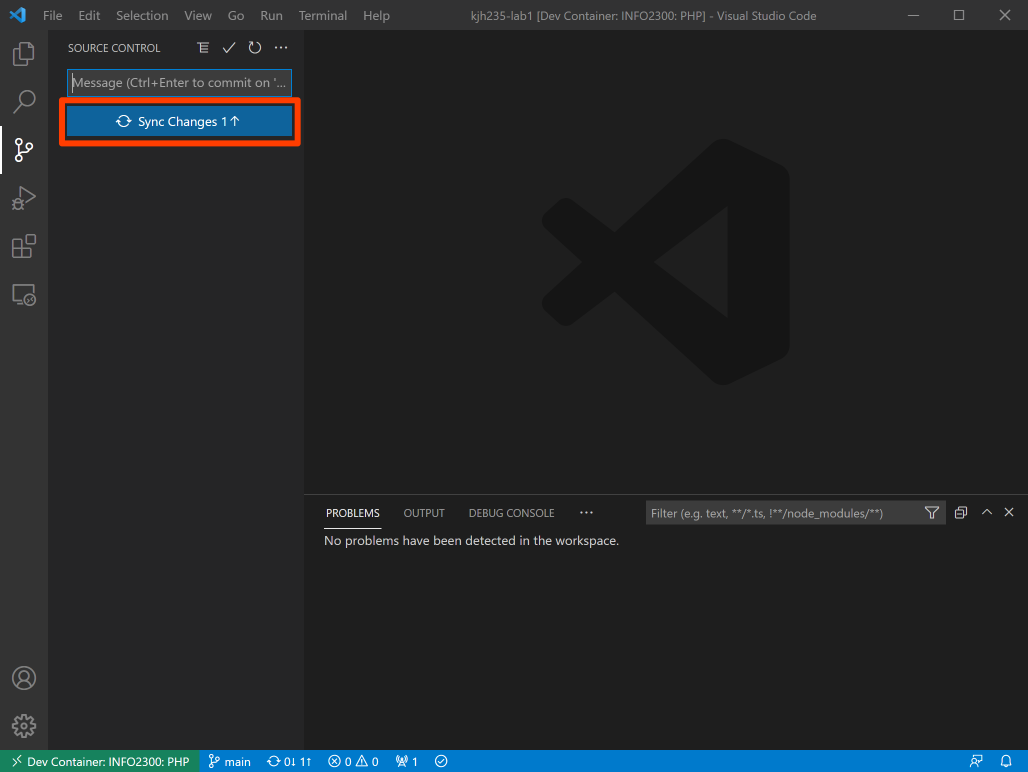
Sync your commits to the Git server (GitHub). Once you commit, Codespaces will give you the option to Sync. Click the Sync Changes button.
After committing your changes, keep in mind that the commit is currently only on your computer. You'll need to send these changes back to GitHub so that you can share them with the course staff. This process is known as "syncing changes".
 Note
NoteIf you have trouble syncing, do not ask ChatGPT for help. It does not understand our course infrastructure and has misled students from previous semesters in destroying their repositories. If you use ChatGPT, please think about what it is asking you to do. No extensions are provided due to being misled by ChatGPT.
-
Complete the submission form to submit the assignment.
No submission form = 0 credit (No exceptions. No leniency.)
NoteThe submission form asks you to check your submission. Checking your work will ensure you receive credit for this assignment. We ask you to check your submission because this is where some students lose points. It's easy to forget something and checking your work prevents the heartache of getting a 0 because your submission wasn't submitted in a way that we can access and grade it.
dangerImportant! You are required to complete the submission form to submit your assignment. No submission form = no submission = 0 credit.
All files must be in the location specified in this document for credit. No leniency is provided for files not in the correct location. Please check your work.
Contributors
The following individuals made contributions to this assignment:
- Kyle Harms